
How to Create a Cricket Team and Add Players in the App
Create a cricket team on your phone, paste your squad list from WhatsApp, avoid duplicate players, set captain and keeper, and let players join by QR code.
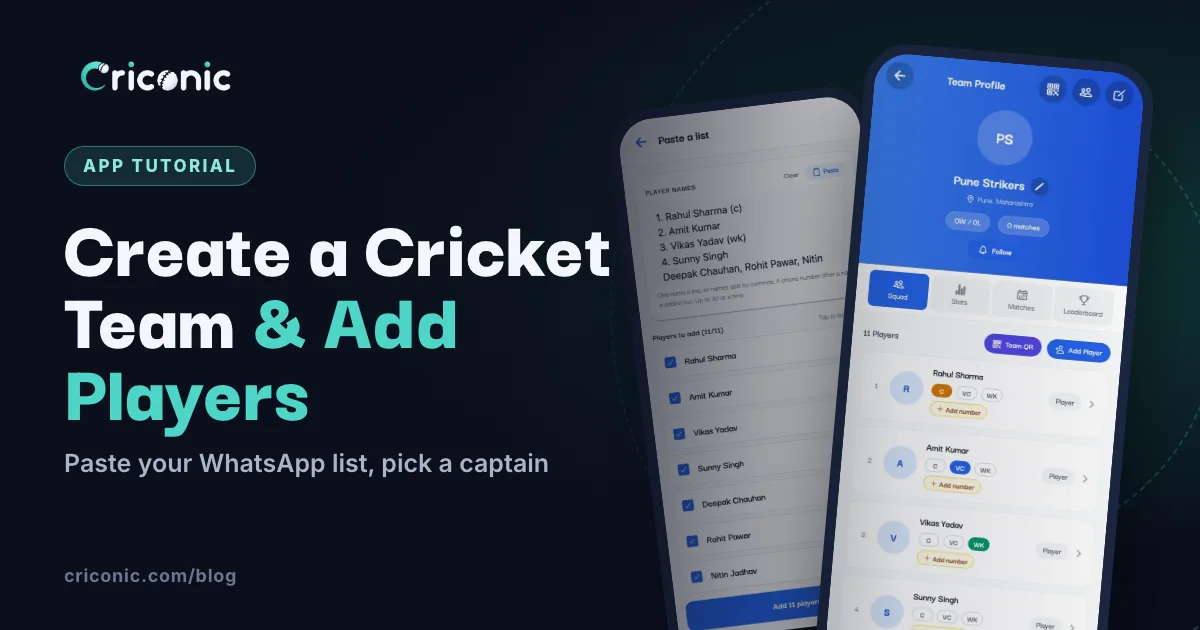
Every local side has its squad list somewhere: pinned in the WhatsApp group, in a notes app, or in the captain's head. Put it in a cricket app once and you never type it again. Pick the playing XI before each match, and every player's runs and wickets land on their own profile.
This tutorial shows how to create a cricket team in the Criconic app and add players in five different ways, with screenshots. It also covers captains, letting players join by QR code, and sharing the team with another organizer. It's free.
1. Open Create Team
There are a few ways in, and they all open the same form:
- Tap the blue + at the bottom of the app, then Create Team.
- Tap Add Team on Home.
- While setting up a match: on Select Team A (or B), open the Create tab.
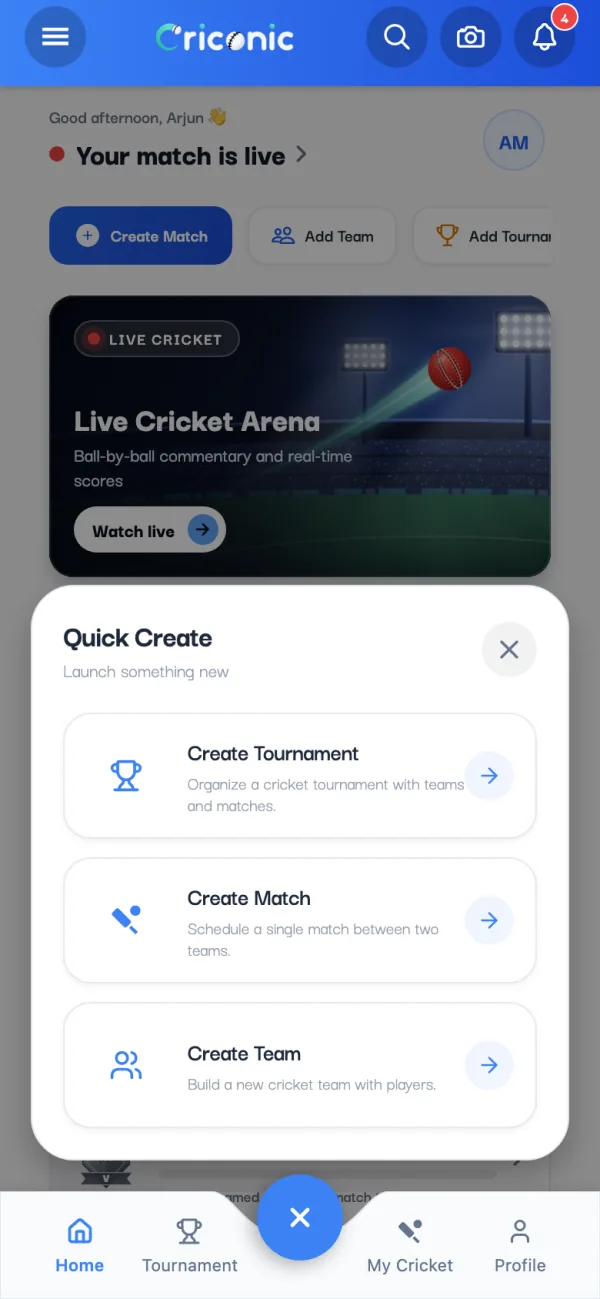
You need to be signed in. New to the app? Start with how to use a cricket scoring app.
2. Name the team and add the city
- Team Logo: optional. Tap Upload Logo and pick a square image.
- Team Name: type it in English letters.
- Short Name: fills itself in (Pune Strikers becomes PS). It's what scoreboards show, up to 10 letters. Change it if you like.
- City: required. Start typing and pick it from the list.
- Home Ground: optional.
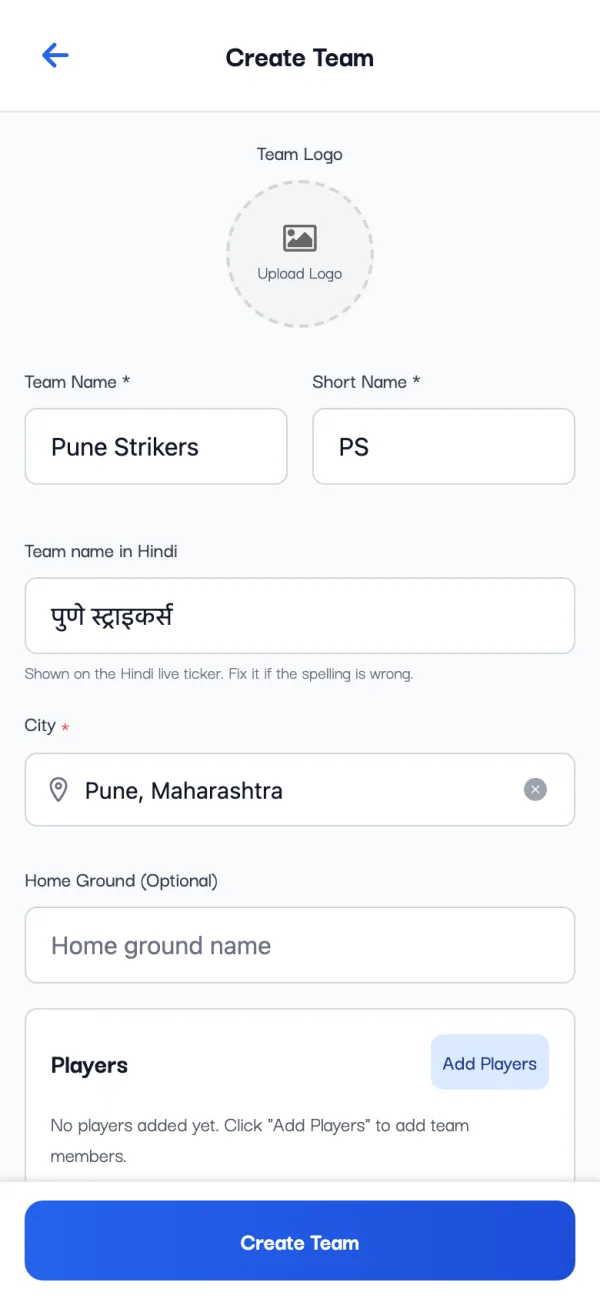
If you already have a team with the same name, the app says so and offers to open it, so you don't end up with two copies of one club.
3. Add players: five ways
Tap Add Players. The Add Player screen offers:
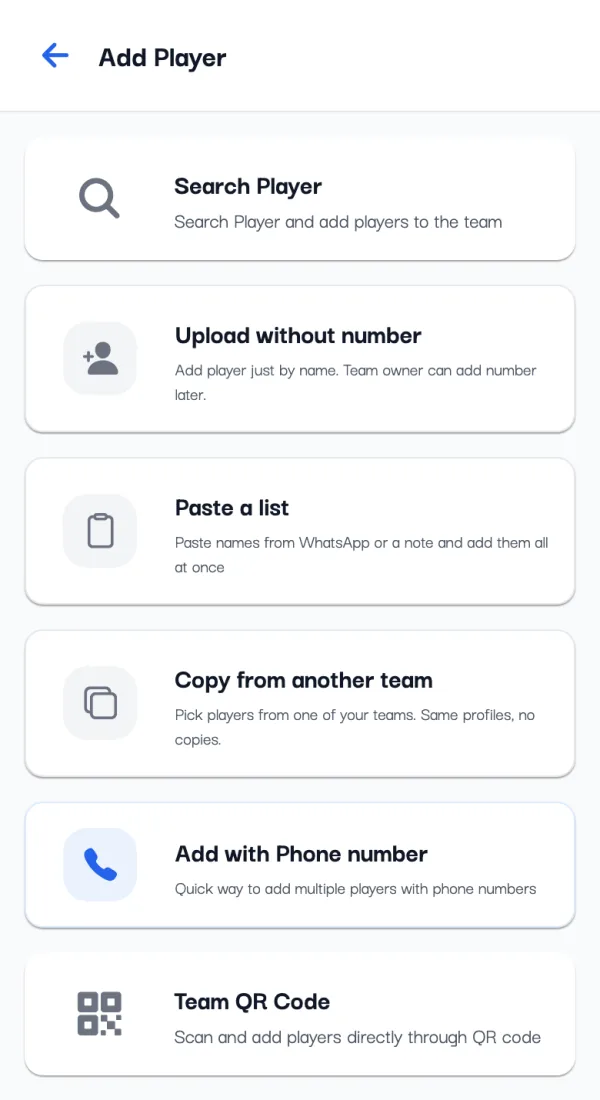
- Search Player: find someone who's already on Criconic by name, city or player code, and tap to add them.
- Upload without number: just the name. Good for a friend who isn't on the app yet; the number can be added later.
- Paste a list: the fastest way to build a whole squad (next step).
- Copy from another team: pick players from one of your other teams. They stay the same profiles, so their stats aren't split.
- Add with Phone number: name plus a 10-digit mobile number, typed or picked from your contacts.
The sixth option, Team QR Code, lets players add themselves (step 6).
4. Paste your squad from WhatsApp
Copy the squad list from your group chat, open Paste a list and tap Paste. Write one name a line, or separate names with commas. Numbering such as "1." and tags such as (c) or (wk) are removed, and a phone number written after a name is added too. Untick anyone you want to leave out, then tap Add players.
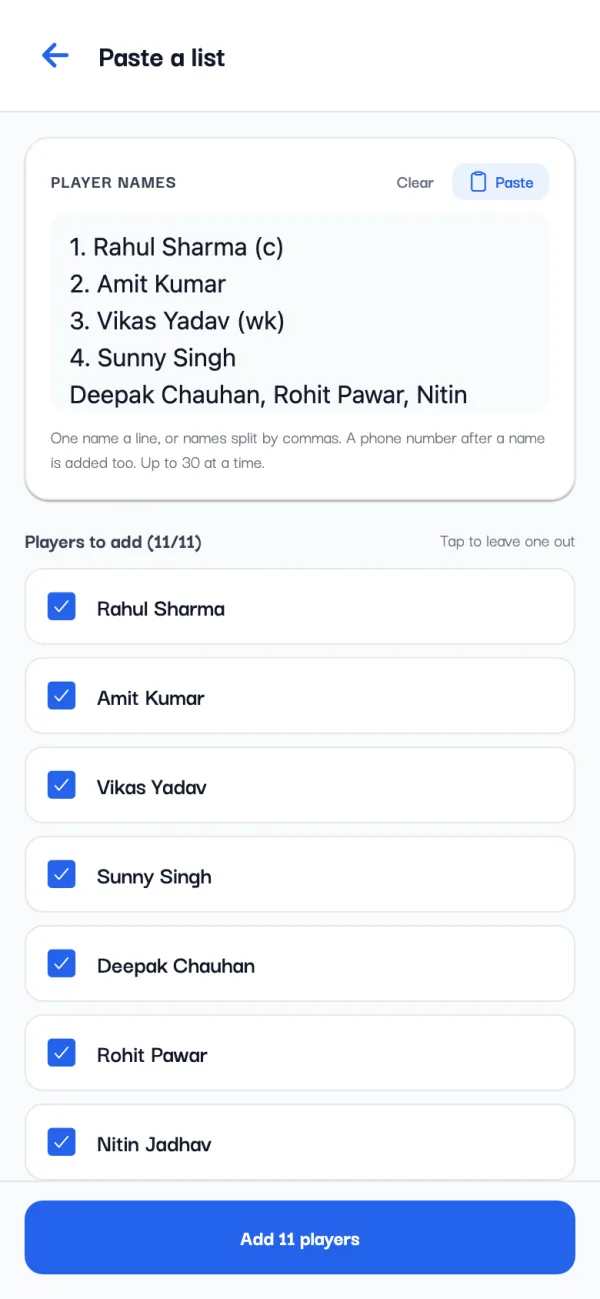
Players picked here are saved when you tap Create Team. After that the team is ready, and you can add more at any time from the team page.
5. Avoid duplicate players
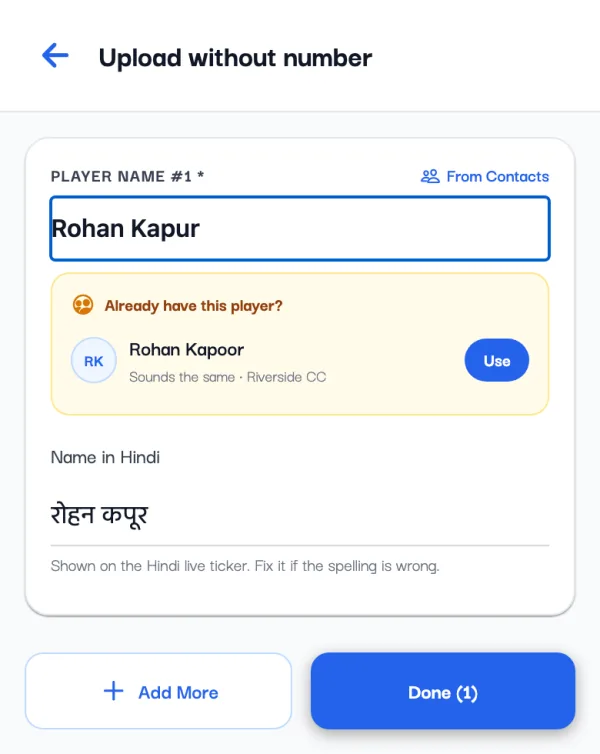
Two profiles for the same person split their stats in half. When you type a name that looks like a player you already have, the app shows Already have this player? with the match: same name, sounds the same, or a similar spelling. Tap Use to add that profile instead of making a new one.
6. Set the captain, vice-captain and keeper
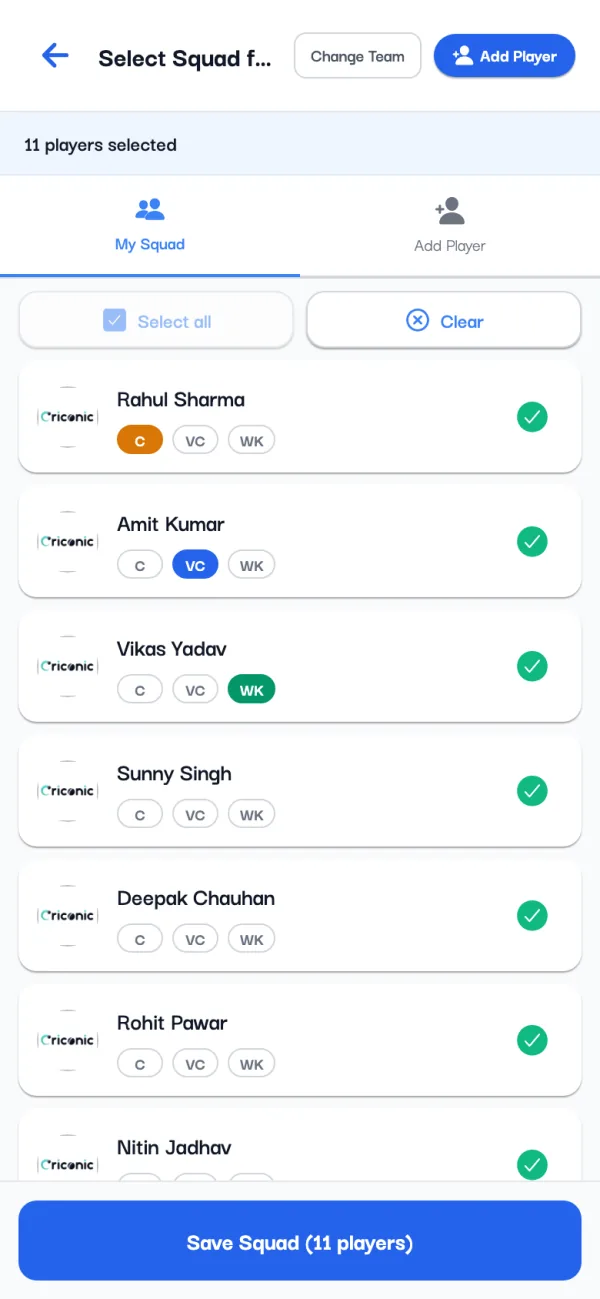
Open the team (My Cricket, then Teams). On the Squad tab, tap C, VC or WK next to a player. Every new match starts with these, and you can still change them when you pick the squad for a game.
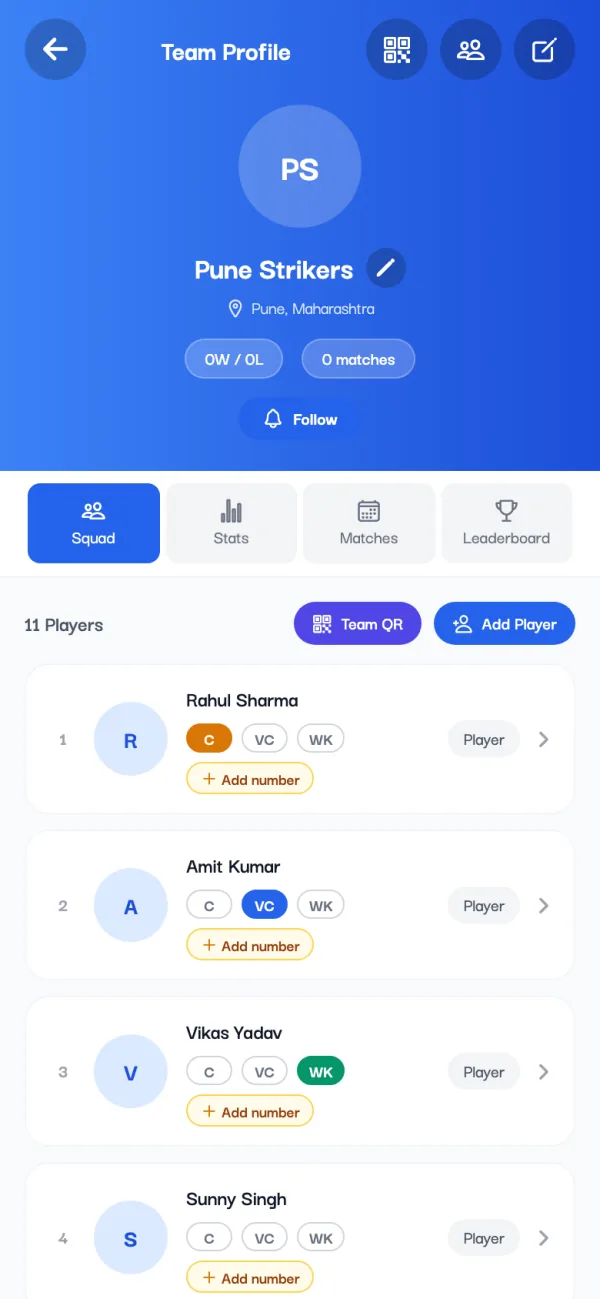
Added someone by name only? Tap Add number on their row when you have it. The number lets that player sign in to the profile and keep its stats.
7. Let players join with the team QR
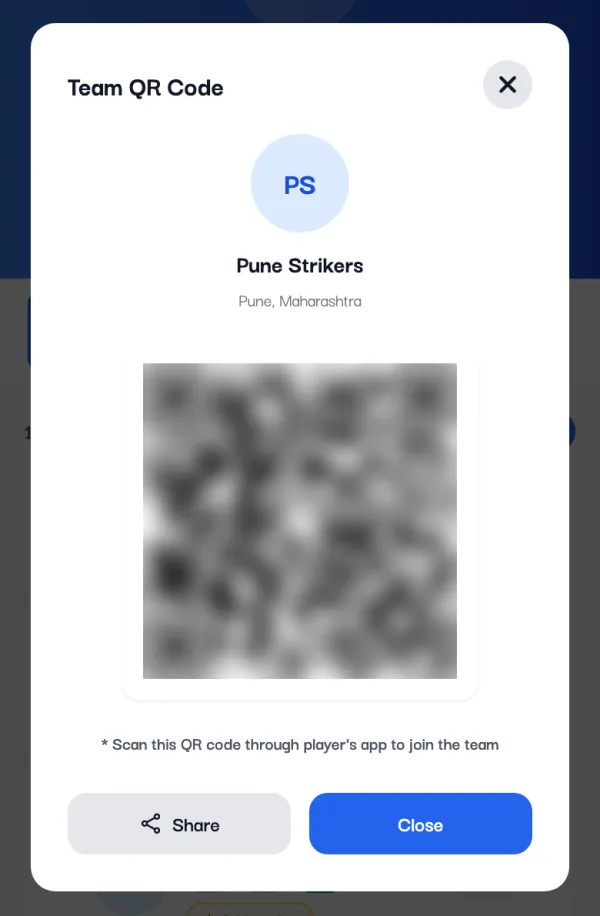
On the team page, tap Team QR. A player opens Criconic, taps the camera icon at the top of the app and scans it, then confirms with Confirm & Join Team. They join the squad with their own profile, so you don't type anything.
8. Share the team with another organizer
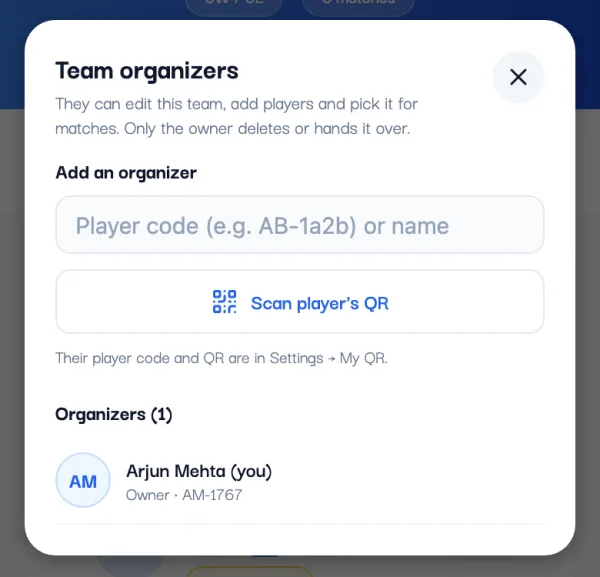
Does your captain or a co-organizer also pick teams for matches? Tap the people icon at the top of the team page to open Team organizers. Add them by player code or name, or scan their QR (it's in their Settings under My QR).
What happens when you add a phone number
- The number already has a Criconic account: that player joins your squad with their own profile and name, and gets an "Added to a team" notification in the app.
- The number isn't on Criconic yet: a profile is made for it. When that person signs up with the same number, the profile becomes theirs, with every match and stat already on it.
- No SMS is sent, and phone numbers never show in the squad list.
Players added by name only can still get their stats later: they open the profile and tap This is me. More on that in how to track your cricket stats.
Pick the playing XI for a match
A team can be bigger than eleven: add the whole club. When you create a match and choose the team, tick the players who are playing and tap Save Squad. The app remembers the last XI to save time.
Then carry on with the toss and the first ball: see the full scoring tutorial. Organising several teams? Put them in a tournament with a points table: see how to create a cricket tournament.
Cricket team kaise banaye (Hindi mein)
- Criconic ऐप में नीचे नीले + बटन पर टैप करें और Create Team चुनें।
- टीम का नाम (अंग्रेज़ी अक्षरों में), शॉर्ट नेम और शहर भरें।
- Add Players पर टैप करें। WhatsApp से पूरी लिस्ट कॉपी करके Paste a list से एक साथ जोड़ें।
- Create Team पर टैप करें। टीम पेज पर C, VC और WK चुनें।
- खिलाड़ी खुद जुड़ें, इसके लिए उन्हें Team QR स्कैन करने दें।
Questions
How do I create a cricket team in the app?
Tap the + button, then Create Team. Enter the team name, short name and city, tap Add Players to add your squad, and tap Create Team.
Do my players need the app?
No. You can add players by name or phone number and score their matches. With the app, they can see their own stats on their profile and join teams by QR code.
Will my players get an SMS when I add them?
No SMS is sent. A player whose number already has a Criconic account gets a notification in the app.
How many players can a team have?
More than eleven: add your whole club, then tick the playing XI for each match.
Can I add players without internet?
No. Creating a team and adding new players need a connection. During a match you can add players from a team's saved list offline.
Can someone else manage my team?
Yes. Add them under Team organizers on the team page. They can edit the team, add players and pick it for matches; only the owner can delete it or hand it over.