
How to Use a Cricket Scoring App: Step-by-Step Guide
Learn how to use a cricket scoring app on your phone: create teams and a match, score each ball, record wickets, fix mistakes and share the scorecard.
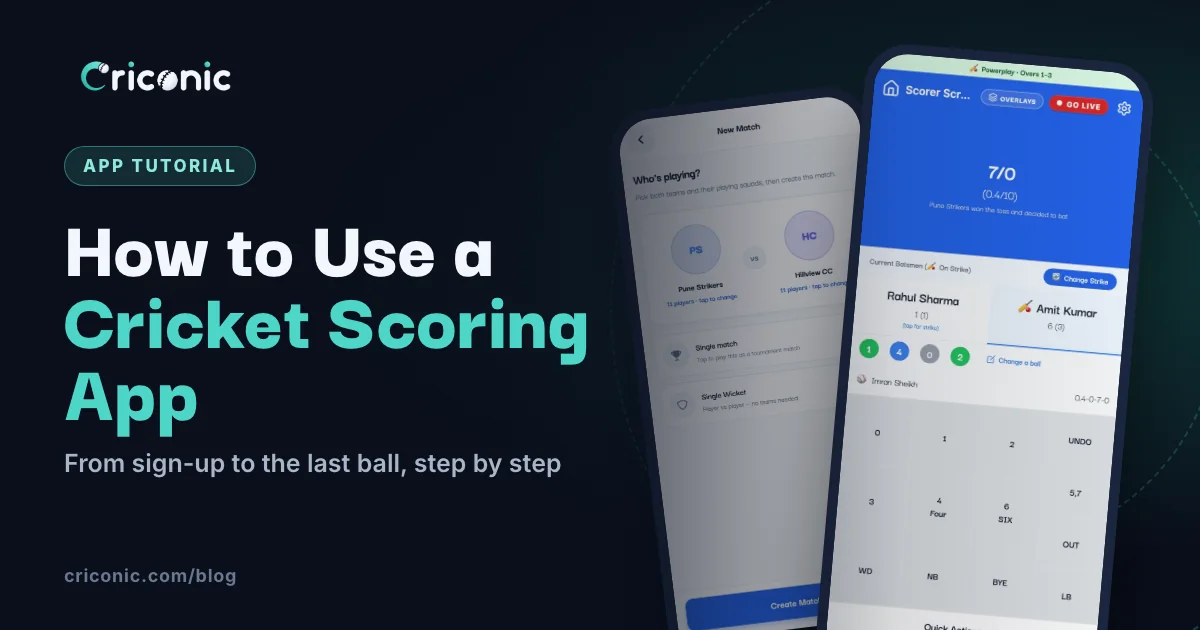
A cricket scoring app replaces the scorebook: you tap once per ball, and the app keeps the score, the batting and bowling figures, the overs and the strike. Everyone else can follow the match live on their phone, and every player's stats add up by themselves.
This guide shows how to use the Criconic app from your first sign-in to the last ball of a match, with real screenshots of each step. Scoring, scorecards and stats are free. The steps are the same for a T20, a box cricket game or a tennis ball match in the gully.
1. Download the app and create an account
Get Criconic from Google Play on an Android phone or the App Store on an iPhone. You can also score from criconic.com in any phone browser.
Tap Create an account. Enter your name and mobile number, tap Get OTP and type the 6-digit code you receive, then choose a password. Next time, sign in with your mobile number and that password. Outside India, use Continue with Google instead.
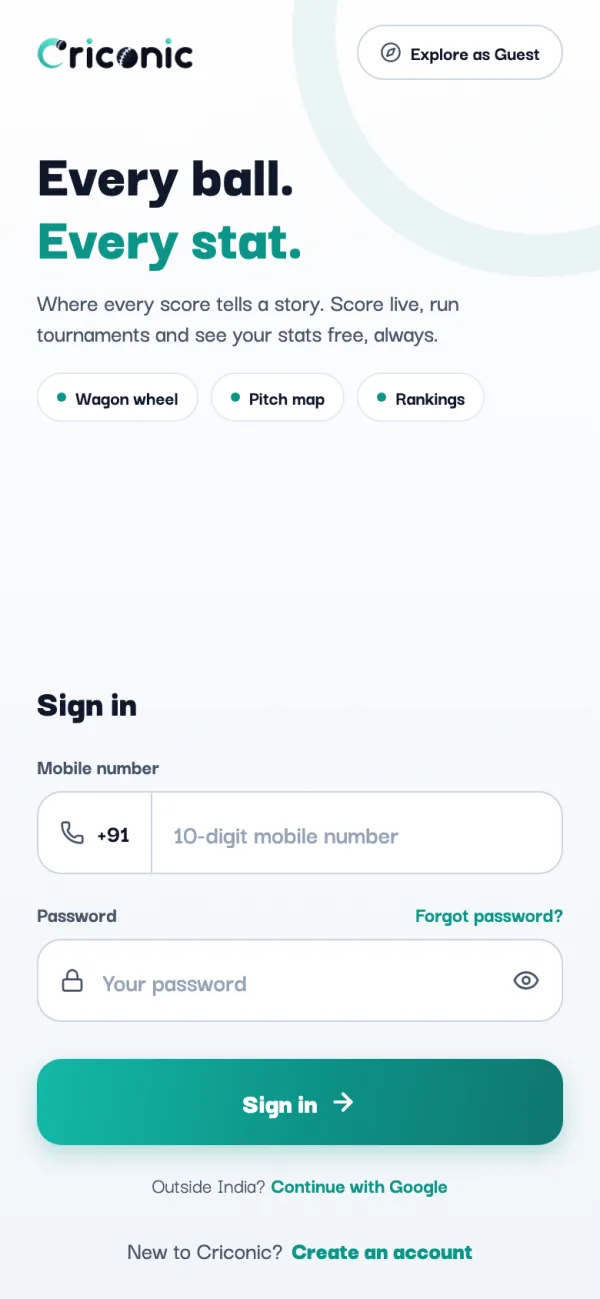
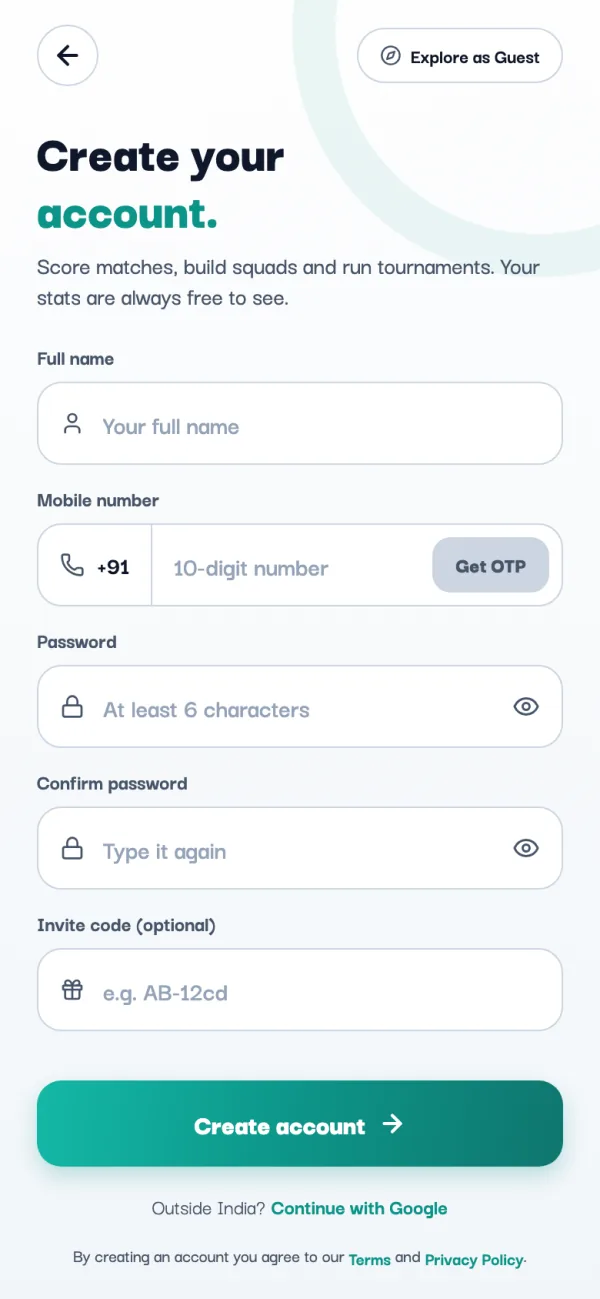
Just want to watch? Explore as Guest opens live matches and scorecards without an account. You need an account to score, so the match is saved and the stats go to the right players.
2. Set up your player profile
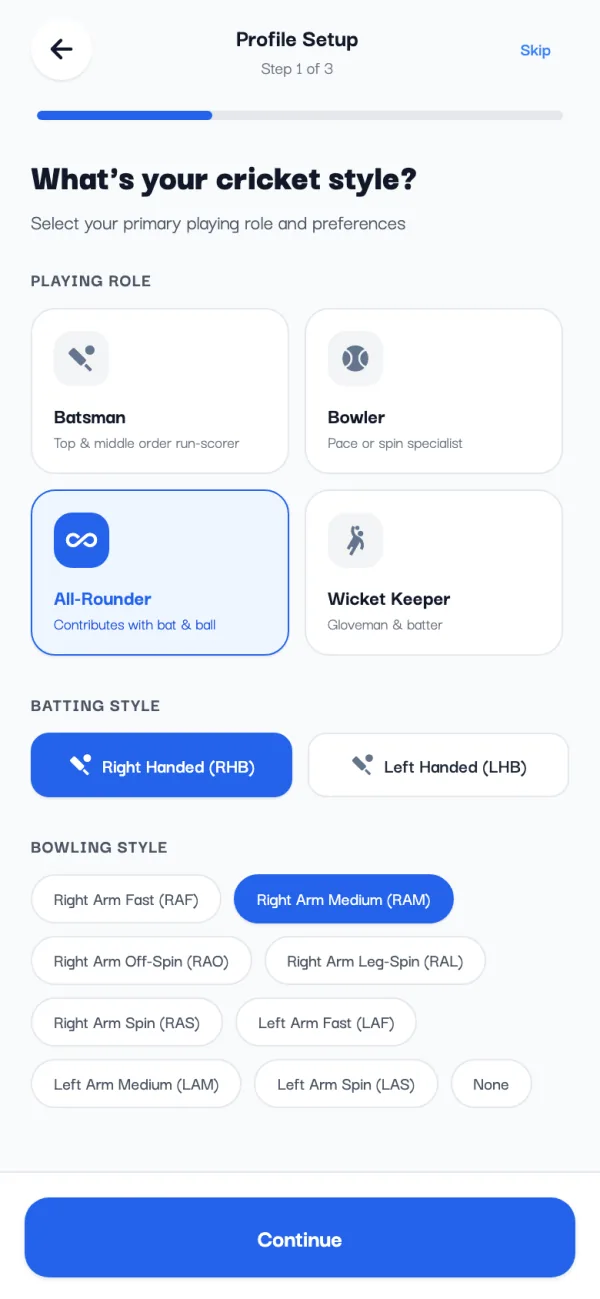
The app asks three quick questions: your playing role (Batsman, Bowler, All-Rounder or Wicket Keeper), your batting style and your bowling style. Then a photo, your city and a short bio. Tap Skip if you're in a hurry; you can fill it in later from your profile.
3. Find your way around
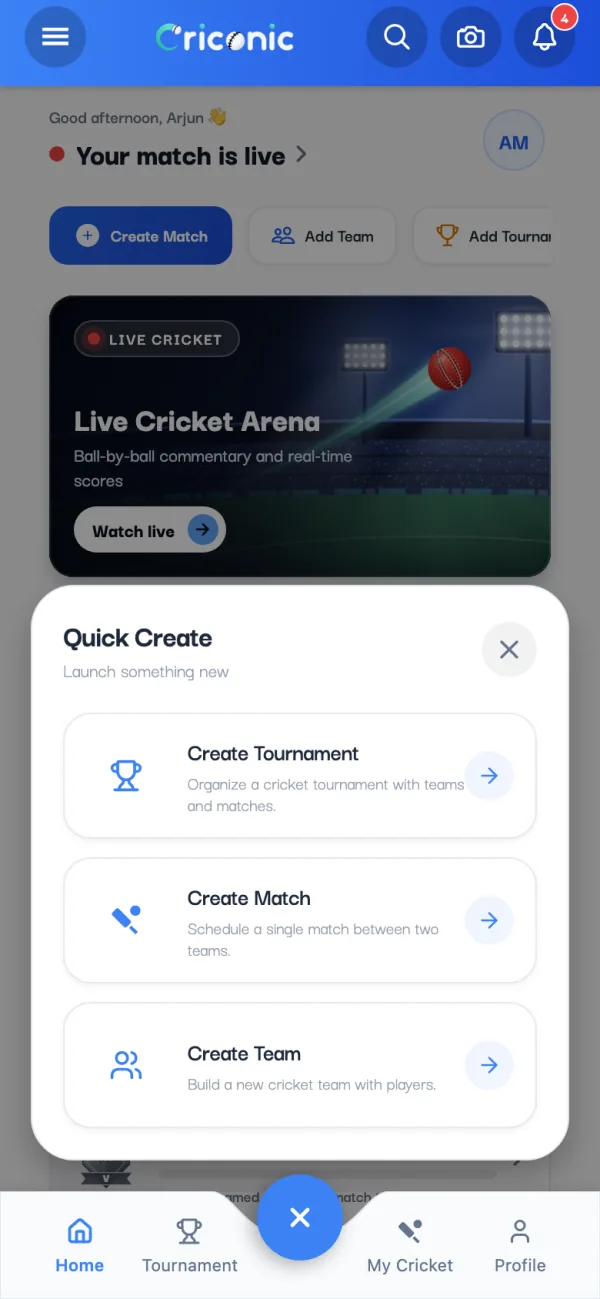
Home shows your live and next matches, your last result and the quick buttons Create Match, Add Team and Add Tournament. The bar at the bottom has Home, Tournament, My Cricket and Profile, with a blue + in the middle.
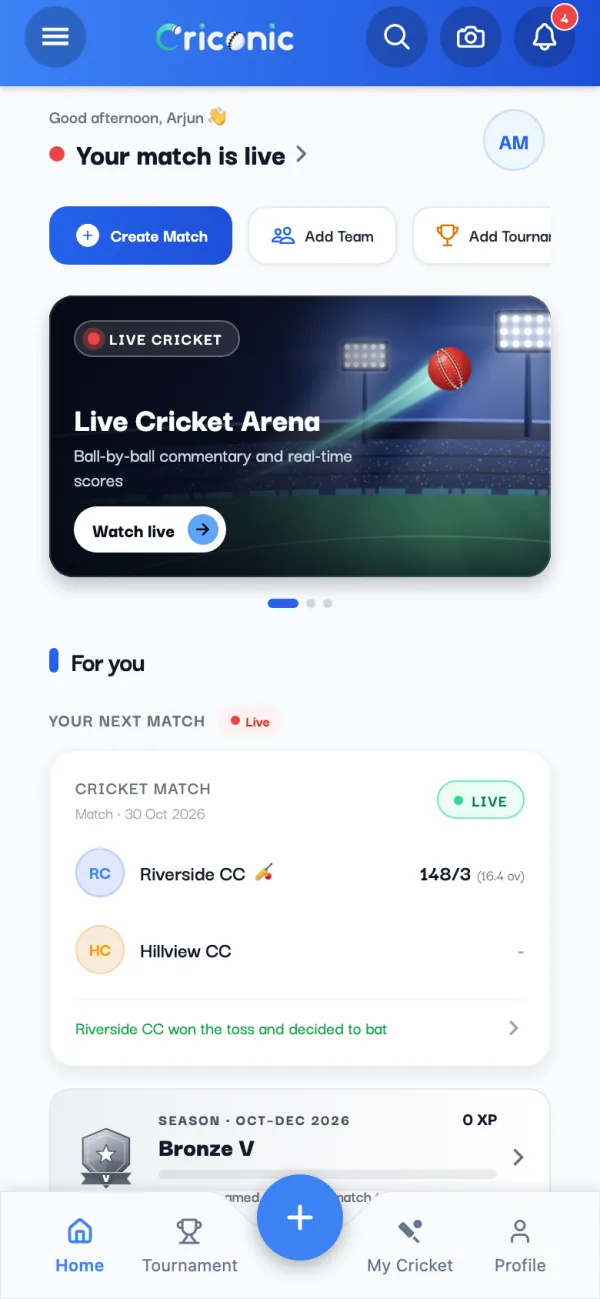
- My Cricket lists your matches, tournaments and teams. Resume a match from here.
- Profile is your career: stats, form, badges and rank.
- The menu (top left) has everything else: All Matches, rankings, settings and the guides.
4. Make your teams
A match needs two teams. Tap + and then Create Team, give it a name and a city, and add the players. The quickest way is Paste a list: copy your squad from the WhatsApp group and the app turns it into players in one go.
You can also create a team in the middle of setting up a match. The full walkthrough, with captains and QR joining, is in how to create a cricket team and add players.
5. Create the match
Tap Create Match. On Who's playing?, tap Select Team A and pick a team from My Teams, or search for the other side. Then tick the players in its playing squad and tap Save Squad. Do the same for Team B.
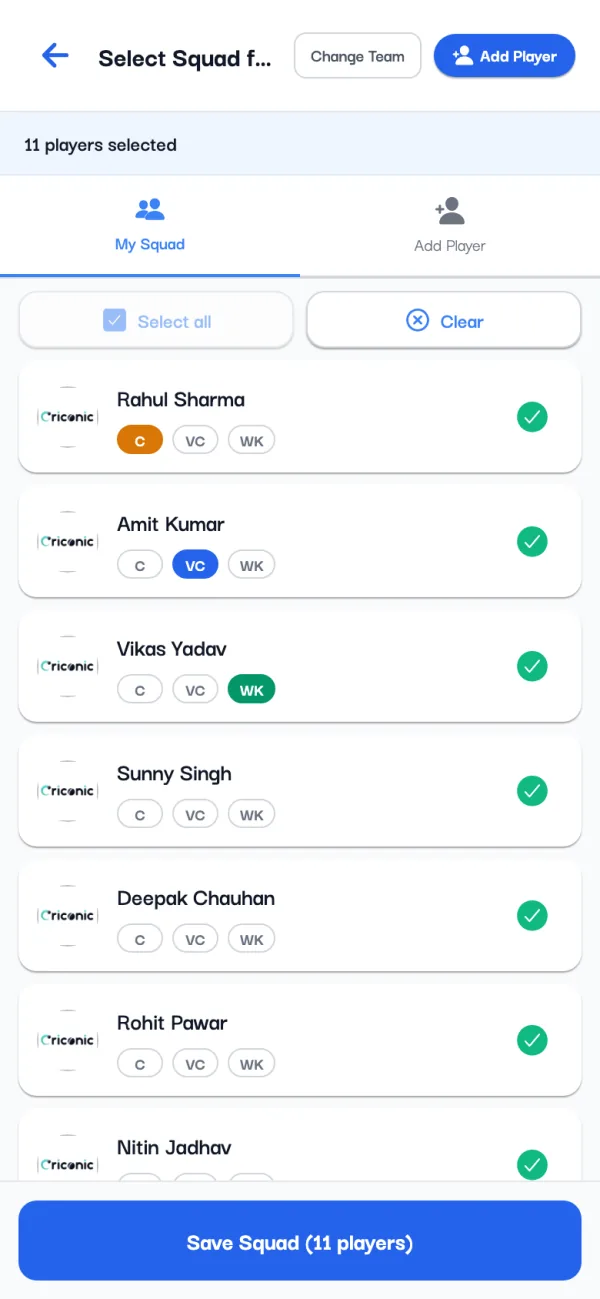
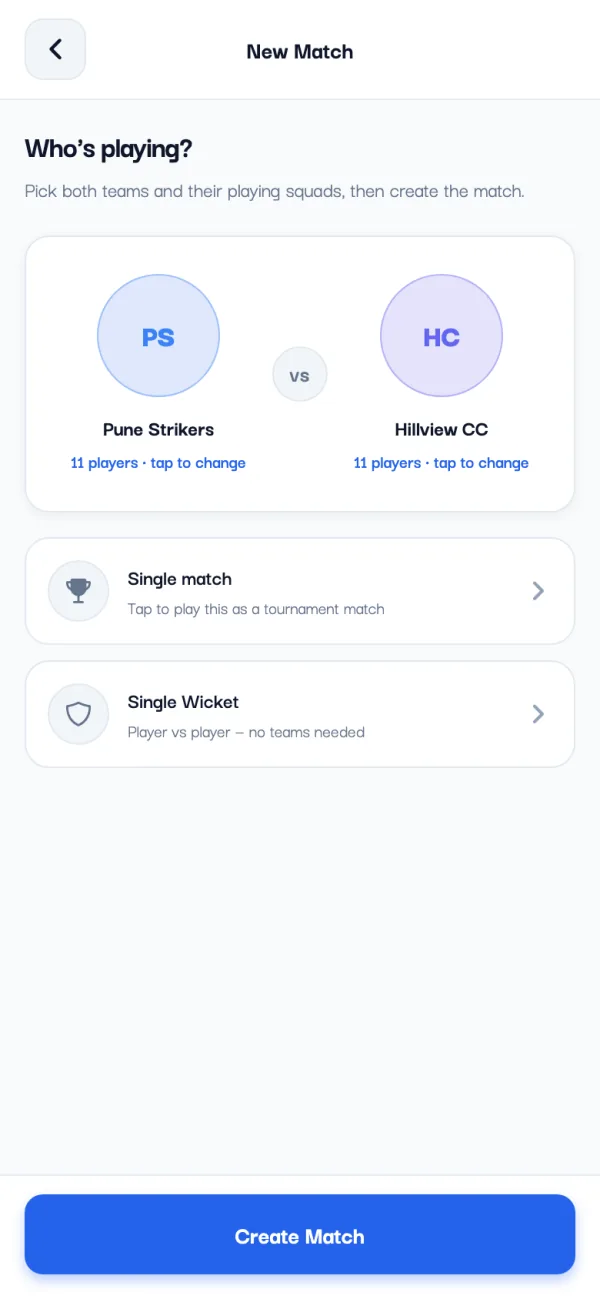
The C, VC and WK chips mark the captain, vice-captain and keeper for this match. Playing one-on-one? Pick Single Wicket instead (see the single wicket rules). To add the match to a league, tap Single match and choose your tournament. When both teams are set, tap Create Match.
6. Choose overs, ground and rules
Three short steps follow:
- Overs: tap 6, 8, 10, 12, 15, 20, 25 or 30 overs, or Custom Overs, and the powerplay.
- Venue: the date and the ground. The ground is required; your recent grounds are one tap away, and Current Location fills it in from where you are.
- Ball, Pitch & Rules: Box Cricket or Limited Overs, Tennis Ball or Leather Ball, the pitch, and your house rules.
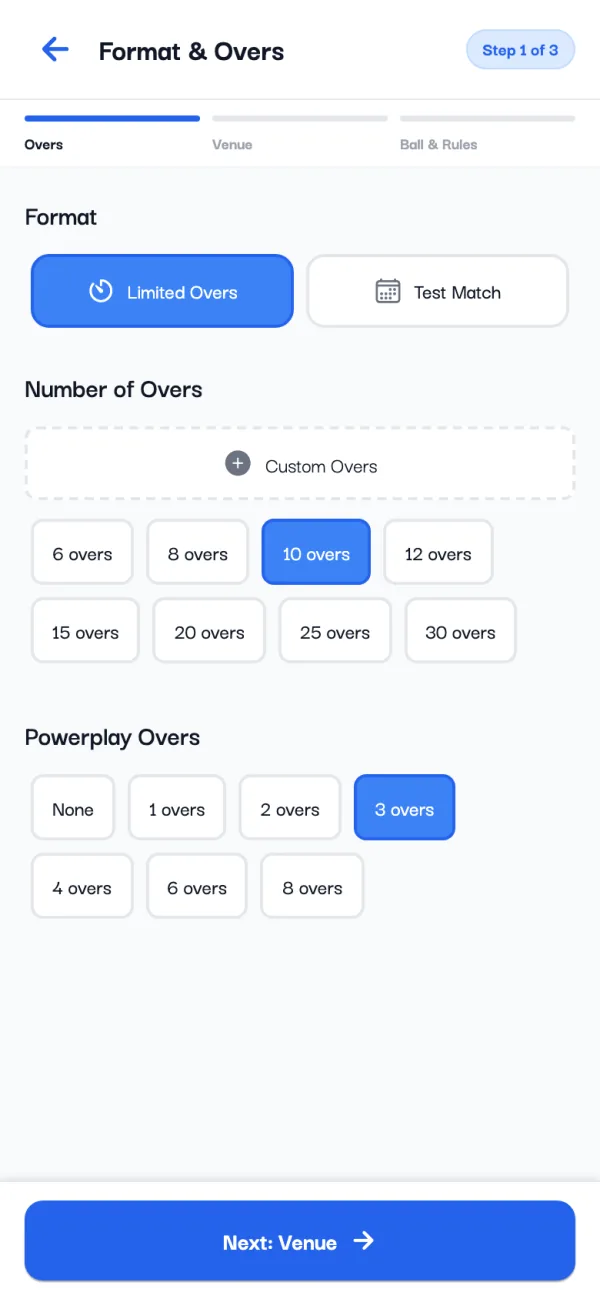
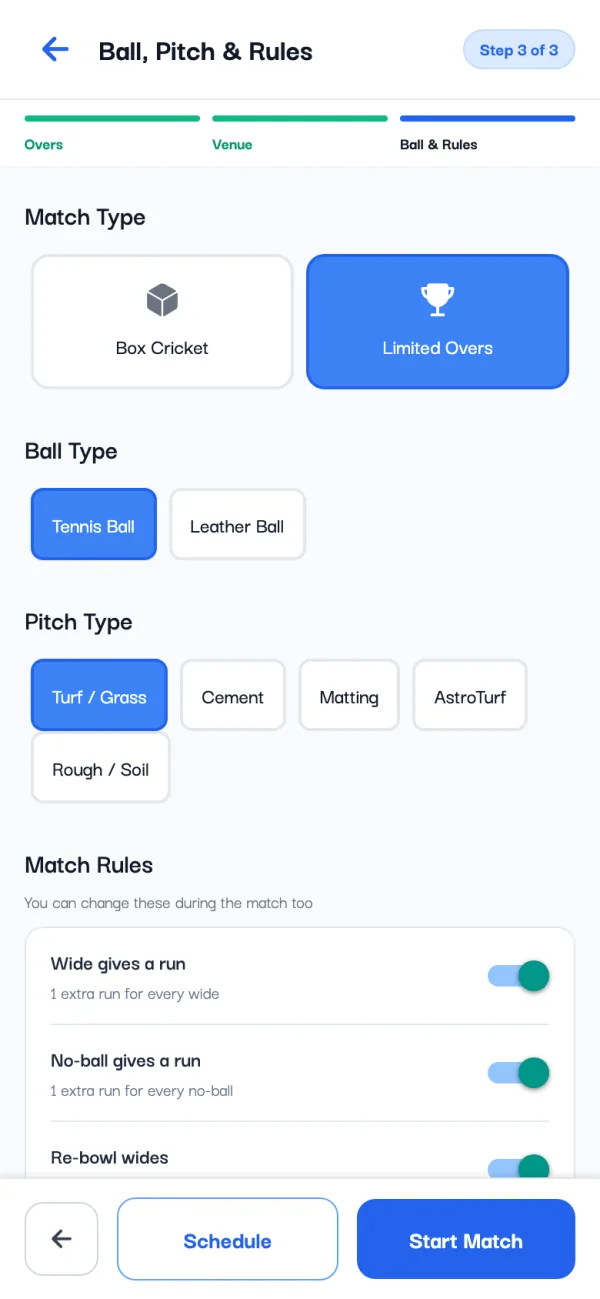
The rules are switches: whether a wide or a no-ball gives a run, whether they're bowled again, free hit after a no-ball, last man standing, balls per over and overs per bowler. Turn on Wagon Wheel or Pitch Map to record where each ball went (more in our wagon wheel and pitch map guide). Not sure what your league plays? See wide and no-ball rules.
Tap Start Match to play now, or Schedule to save it for later.
7. Record the toss and pick the openers
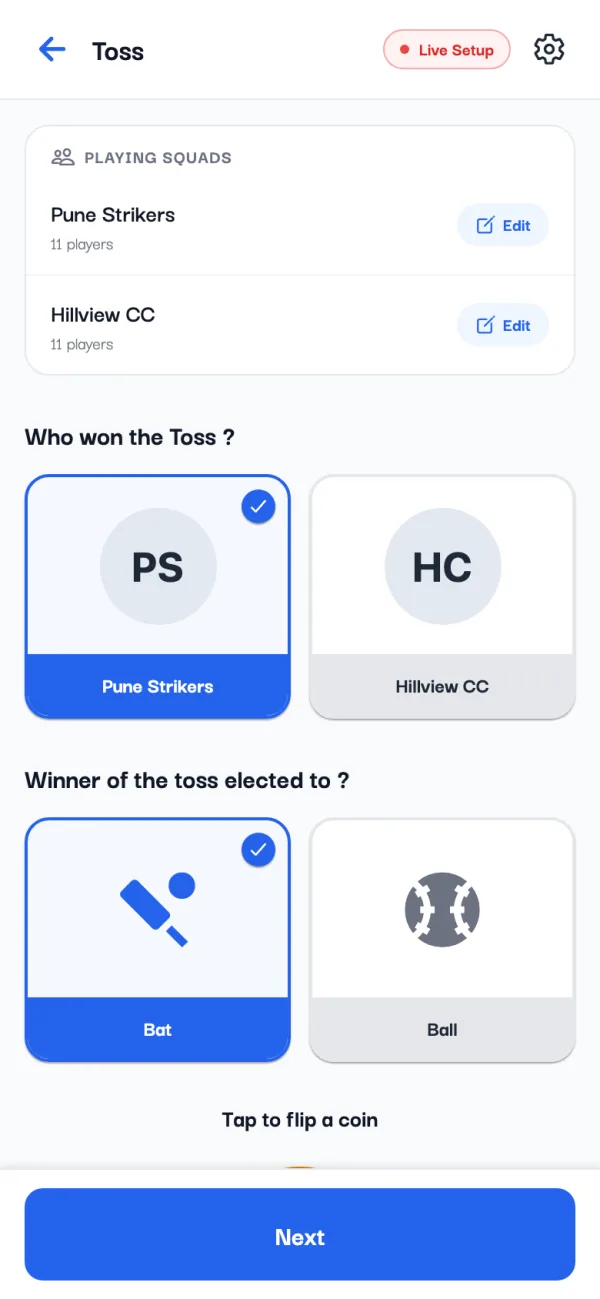
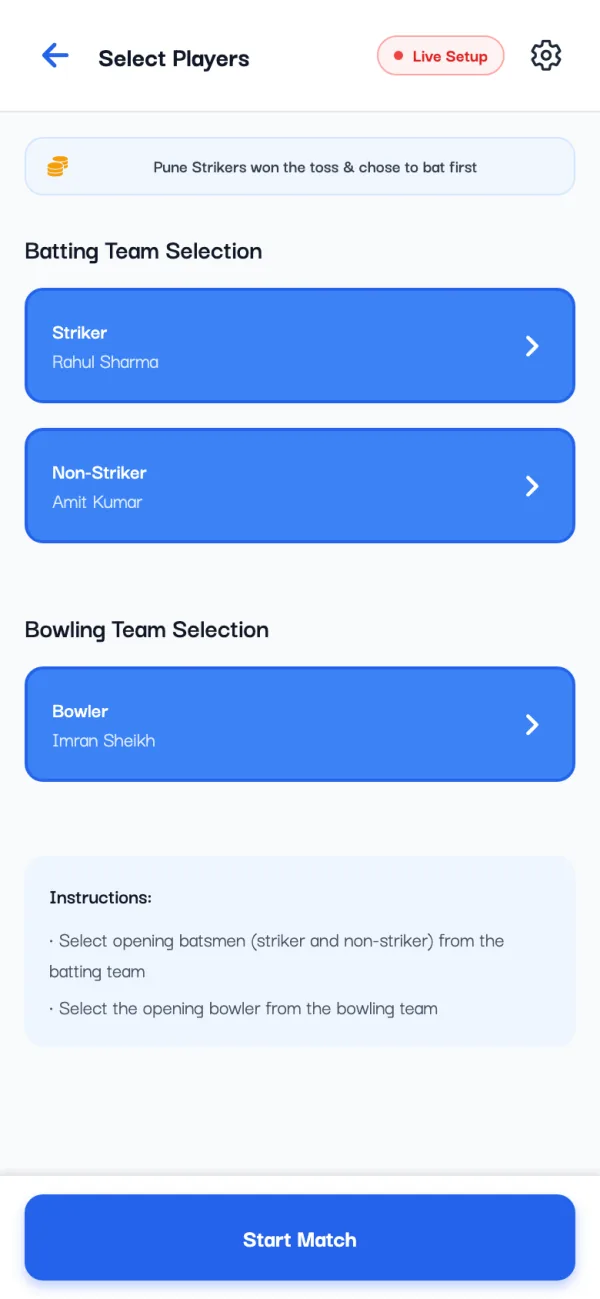
Tap the team that won the toss, then Bat or Ball. There's a coin to flip if nobody has one. Tap Next, choose the Striker, the Non-Striker and the opening Bowler, and tap Start Match.
8. Score every ball
The scorer screen has one button for everything that can happen on a ball:
- 0, 1, 2, 3, 4, 6 for runs off the bat, and 5,7 for the rare five or seven.
- WD (wide), NB (no-ball), BYE and LB (leg bye). A small window asks how many runs came with it.
- OUT for a wicket, and UNDO to take back the last ball.
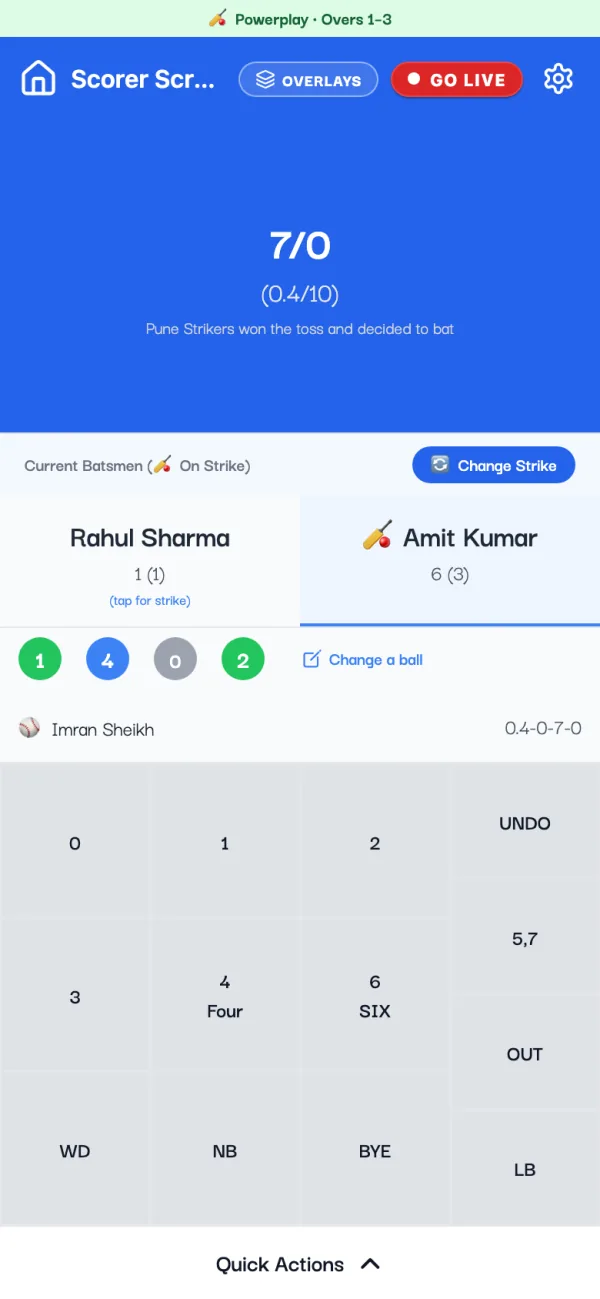
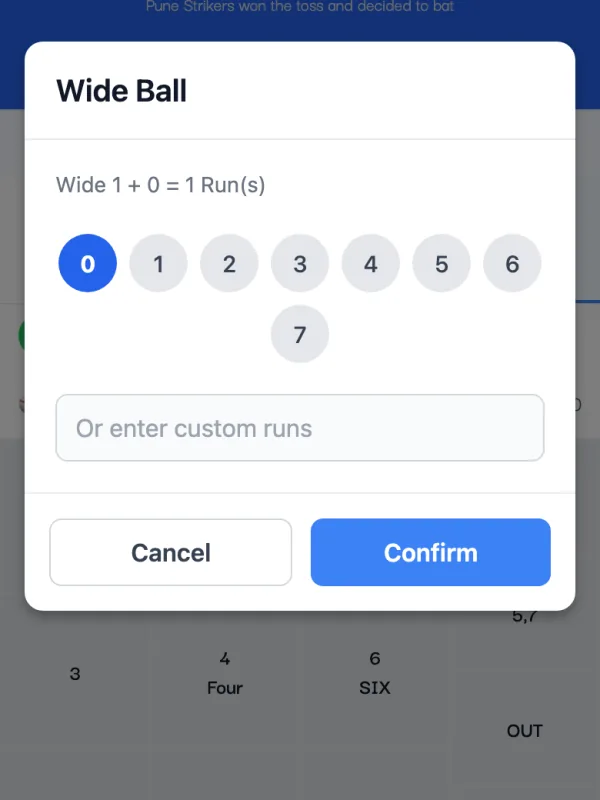
The app swaps the strike after odd runs and at the end of the over. If it's wrong, tap Change Strike or tap the other batter's name. The total, run rate and this over update after every tap. If you're new to the symbols, our guide on how to score a cricket match explains them.
9. Record a wicket
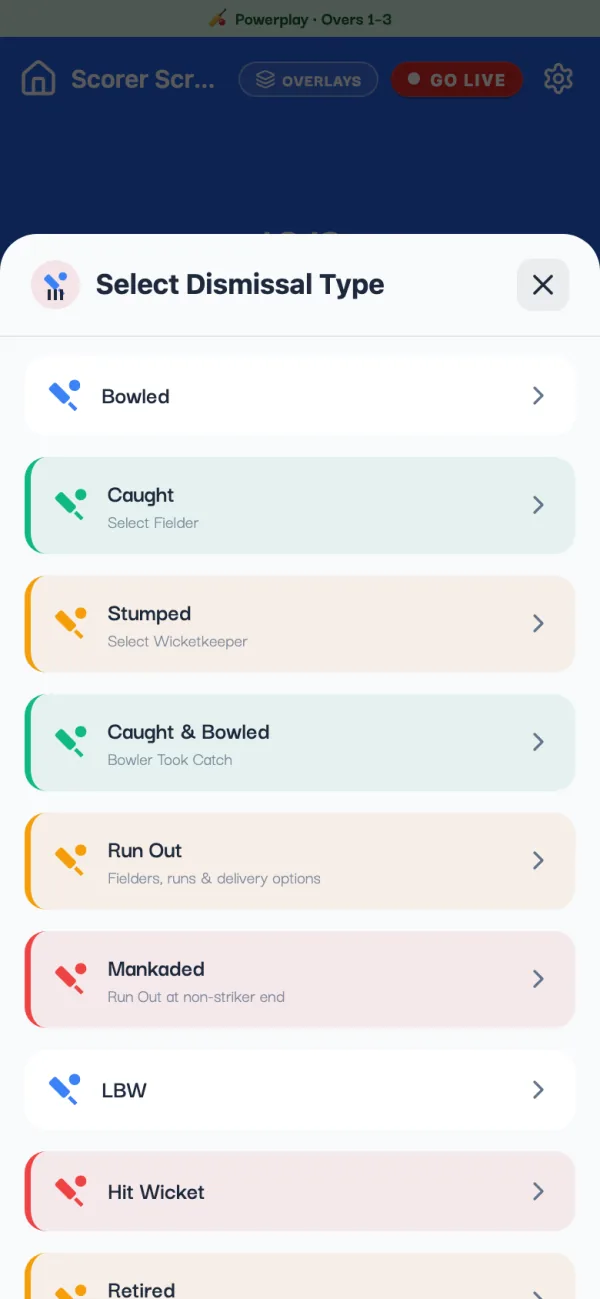
Tap OUT and choose how: Bowled, Caught, Stumped, Caught & Bowled, Run Out, LBW, Hit Wicket, Retired and the rest. For a catch or a stumping, pick the fielder. A run out asks which batter is out, who threw it and how many runs were completed.
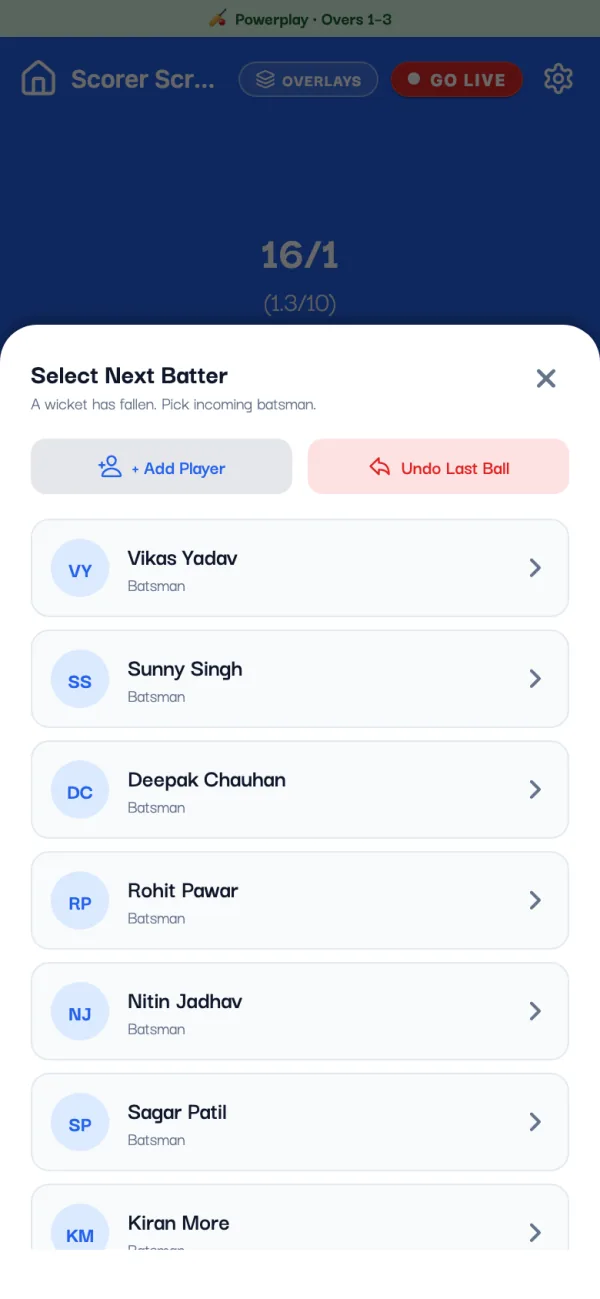
Then pick the incoming batter. After a catch or a run out the app asks who is on strike for the next ball. If a player turns up late, + Add Player puts them in the squad on the spot.
10. Change the bowler each over
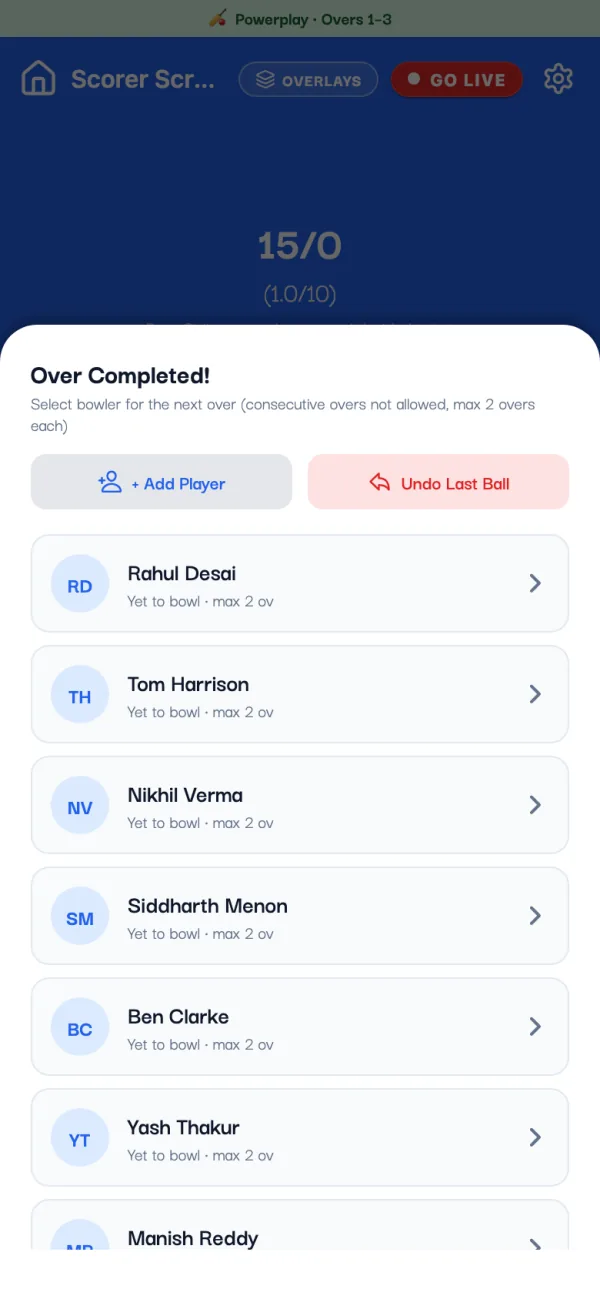
At the end of each over, Over Completed! asks for the next bowler. The app won't let the same bowler bowl two overs in a row, and each name shows what they have bowled so far, and the limit if you set one.
11. Fix a mistake
Everyone taps the wrong button sometimes. There are two ways to fix it:
- UNDO takes back the last ball. Tap it again to go back further.
- Change a ball (above the bowler, or tap a ball in this over) fixes an older ball without undoing the ones after it: its runs, and whether they came off the bat or were byes or leg byes. On a wicket ball you can change the fielder.
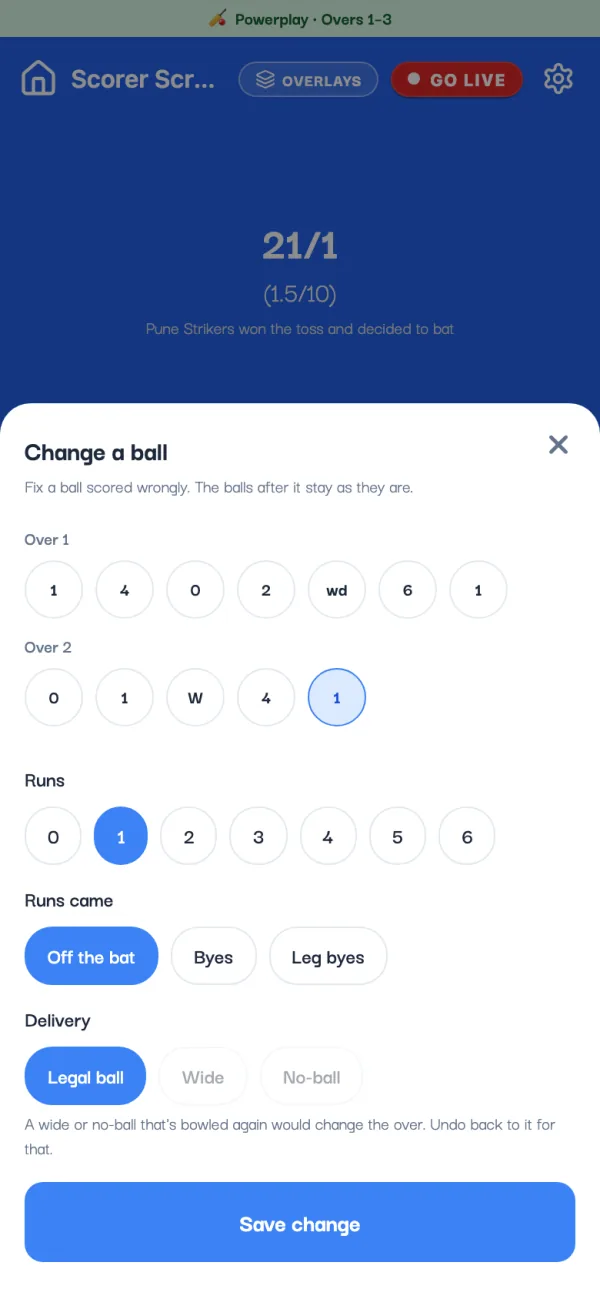
Changing a past ball needs internet. UNDO and normal scoring work offline.
12. End the innings and start the chase
When the overs run out or the side is all out, End of Innings 1 shows the total and the target. Tap Select Innings 2 Openers, confirm, and pick the openers and bowler for the chase. Need to end early, say for rain? Use End Inning in the gear menu's Match Rules.
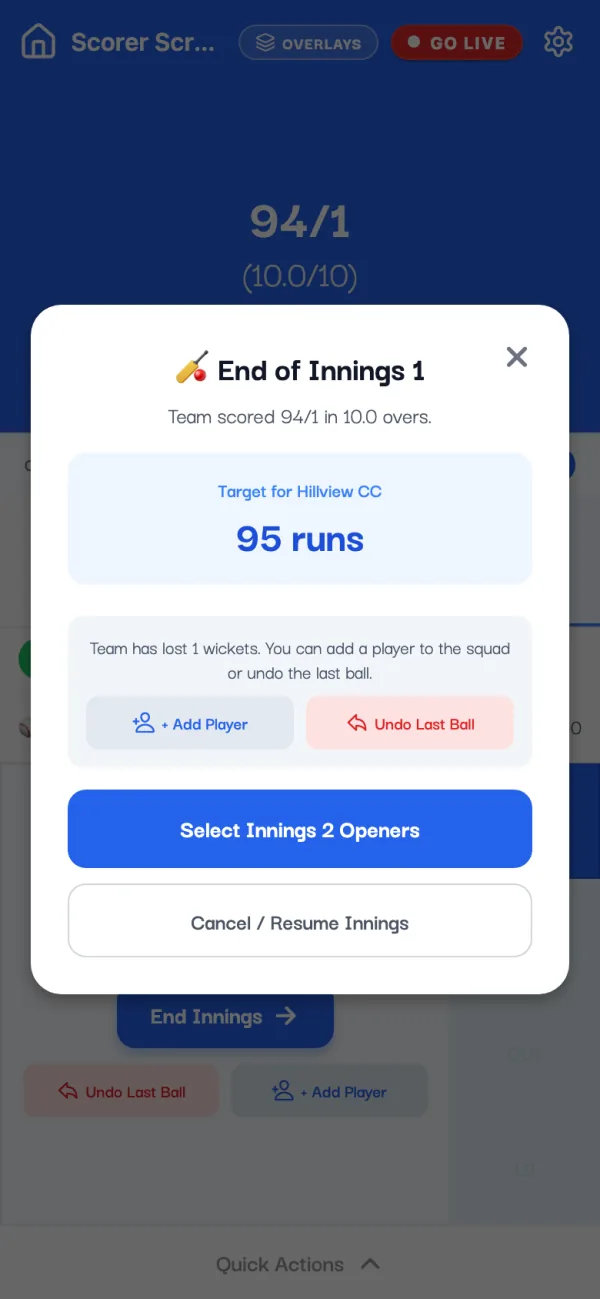
During the chase, the screen shows the runs needed and the balls left. A tie can go to a super over.
13. Finish the match and share it
When the chase is won or the overs are done, Match Completed! shows the result. Tap End Match. The app saves the result, updates every player's stats and asks if you want to share the scorecard. Ended it by mistake? You can reopen it from the match page for 15 minutes.
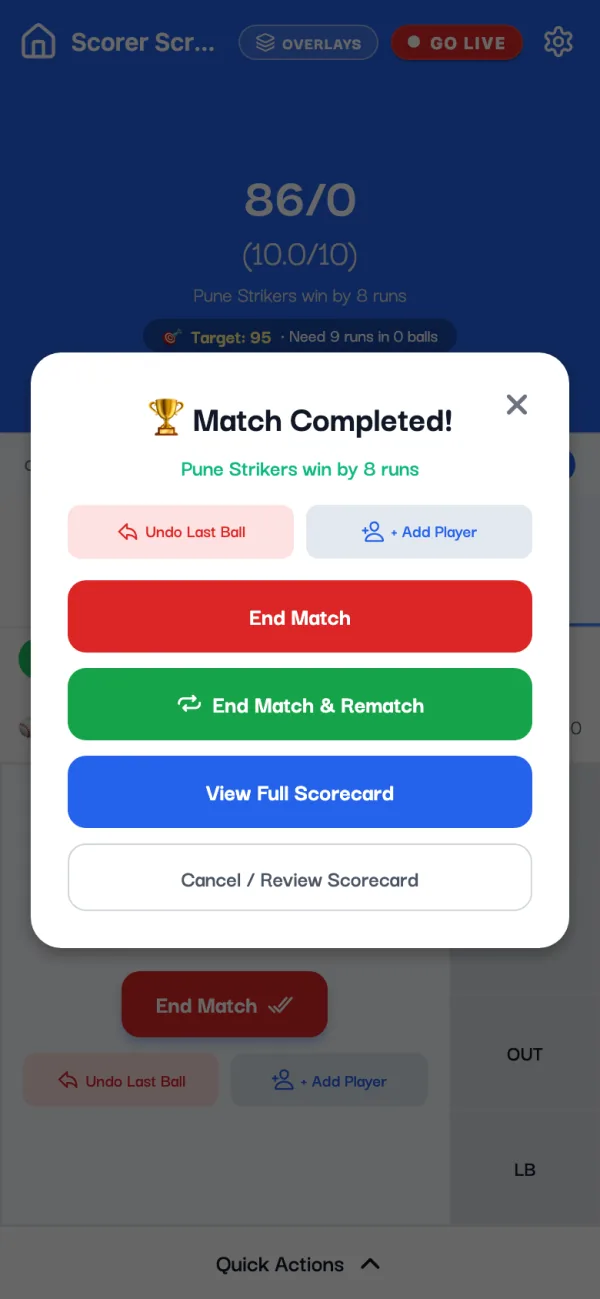
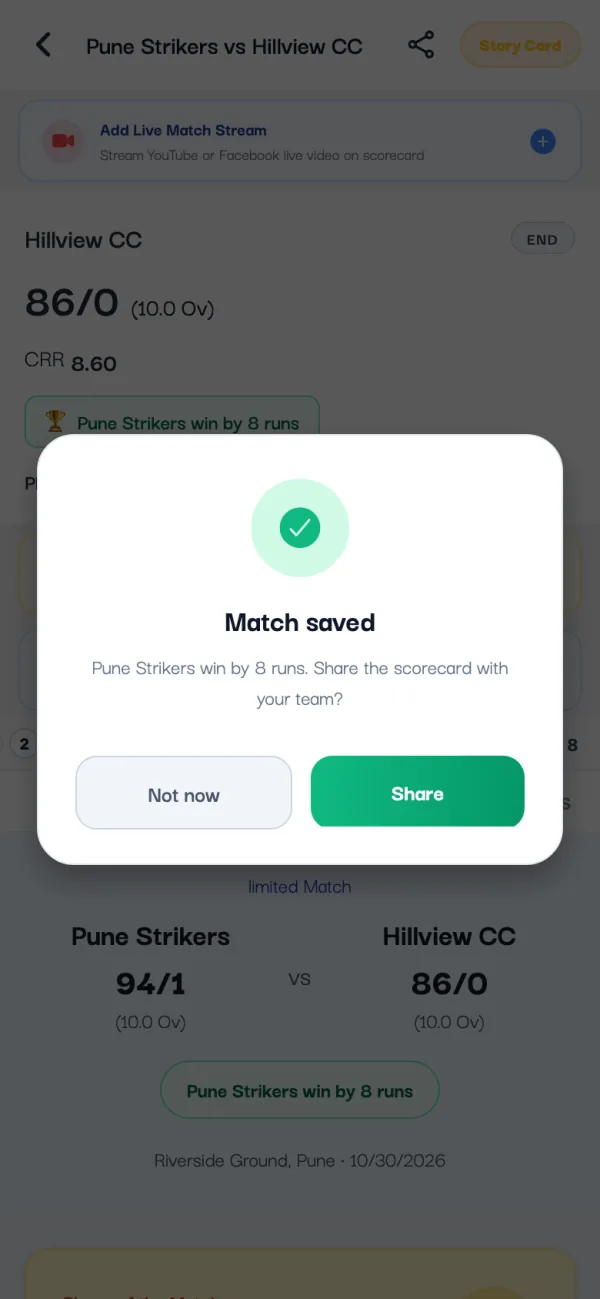
End Match & Rematch sets up the same teams again for the next game. All the ways to send the score, including a scorecard image for WhatsApp, are in how to share the live score of your match.
14. After the match: scorecard, wagon wheel and stats
Every match keeps its full scorecard: Summary with the player of the match, the Score Card, Charts, Analysis, Commentary and the squads. Analysis has the wagon wheel and pitch map when they were recorded, with filters for each batter and bowler.
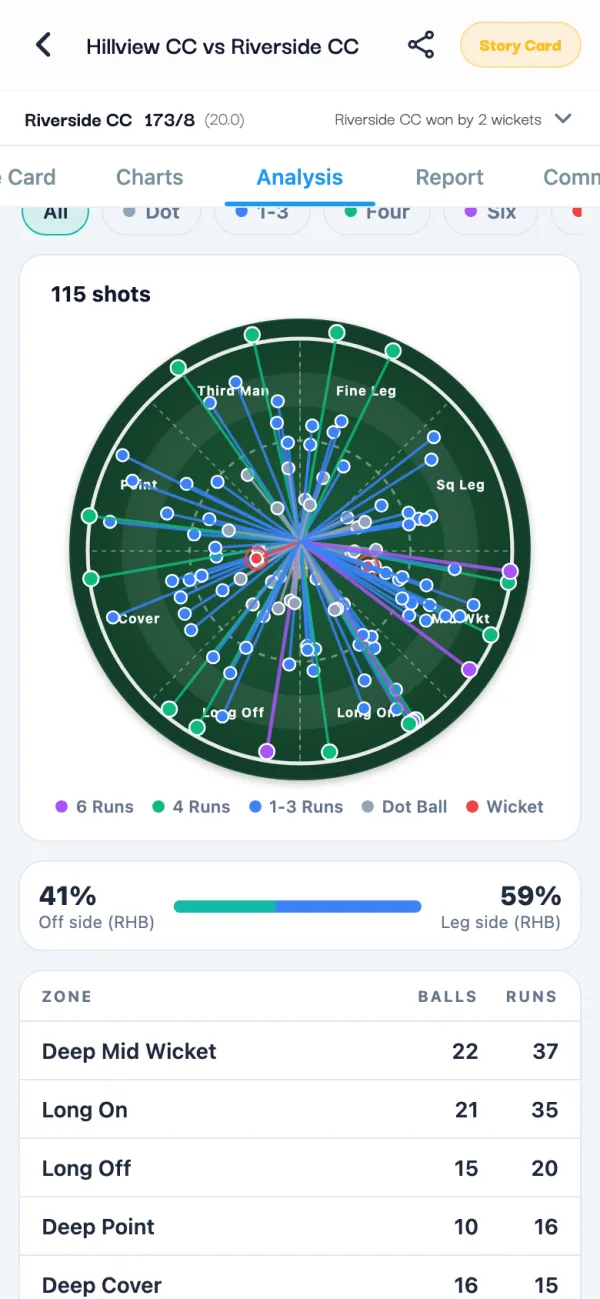
Each player's profile updates when the match ends: runs, average, strike rate, wickets, economy and best figures. See how to track your cricket stats.
Tips for match day
- Make the teams the night before. Paste the squads in, so on the day you only tick the XI.
- Agree the house rules at the toss: wide runs, no-ball runs, overs per bowler and last man standing. Set them before the first ball.
- Weak signal at the ground? Keep scoring. The app saves each ball on the phone and uploads it later. See offline cricket scoring.
- Sit side-on, where you can see the umpire's signals.
- Running a league? Create the tournament first so every match counts in its points table. See the tournament tutorial.
Questions
Is the Criconic cricket scoring app free?
Yes. Scoring matches, live scorecards and every player's stats are free, and you never pay to see your stats.
Is there an iPhone app?
Yes. Criconic is on the App Store for iPhone and on Google Play for Android, with the same account and stats on both. You can also score and follow matches on criconic.com in any browser.
Can I score without internet?
Yes, in the app. Create the match, record the toss and start scoring while you have signal; after that the app saves each ball on the phone and uploads it when you're back online.
How do I correct a wrong ball?
Tap UNDO to take back the last ball. For an older ball, tap Change a ball and fix its runs or extras; the balls after it stay as they are. Changing a past ball needs internet.
Can I use it for box cricket or tennis ball cricket?
Yes. Pick Box Cricket or Limited Overs and Tennis Ball or Leather Ball, set any number of overs and choose whether wides and no-balls give a run.
Do people need the app to follow my match?
No. The match link opens the live scorecard in any browser, without an account.