
How to Make a Cricket Scorecard on Your Phone (Free, Step by Step)
Step-by-step tutorial with screenshots: create a match, set your rules, score each ball and share a live cricket scorecard from your phone. Free to use.
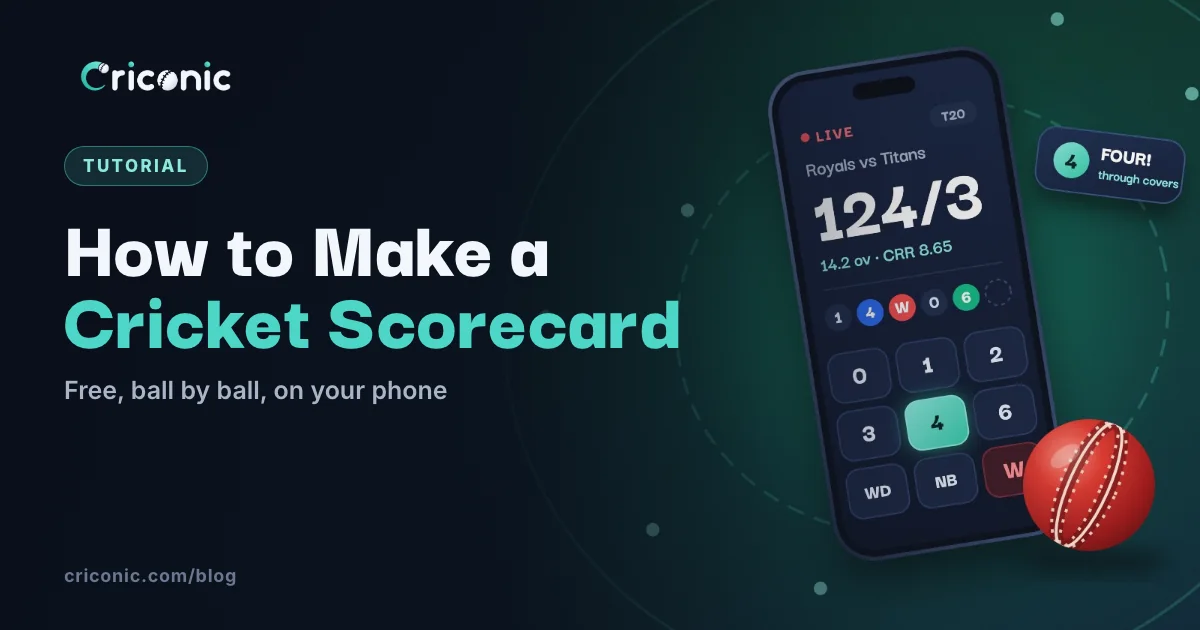
A proper cricket scorecard used to mean a scorebook, a pencil and someone who knew all the symbols. Now you can make one on your phone while you watch the match: tap once per ball, and the batting card, bowling figures, extras, fall of wickets and charts fill in by themselves.
This tutorial walks through scoring a full match on Criconic, step by step, with screenshots. It works on criconic.com in any phone browser, and in the Criconic app for Android and iPhone. Scoring and scorecards are free.
Step 1: sign in
Open criconic.com and create an account with your mobile number. You need an account to score, so the match and everyone's stats are saved, but people following your match don't need one.
Step 2: pick the teams
Tap + to start a new match. On Who's playing?, tap Select Team A and Select Team B. Pick from your teams, search for the opposition, or tap + to create a team on the spot. Then tick the players in each playing squad.
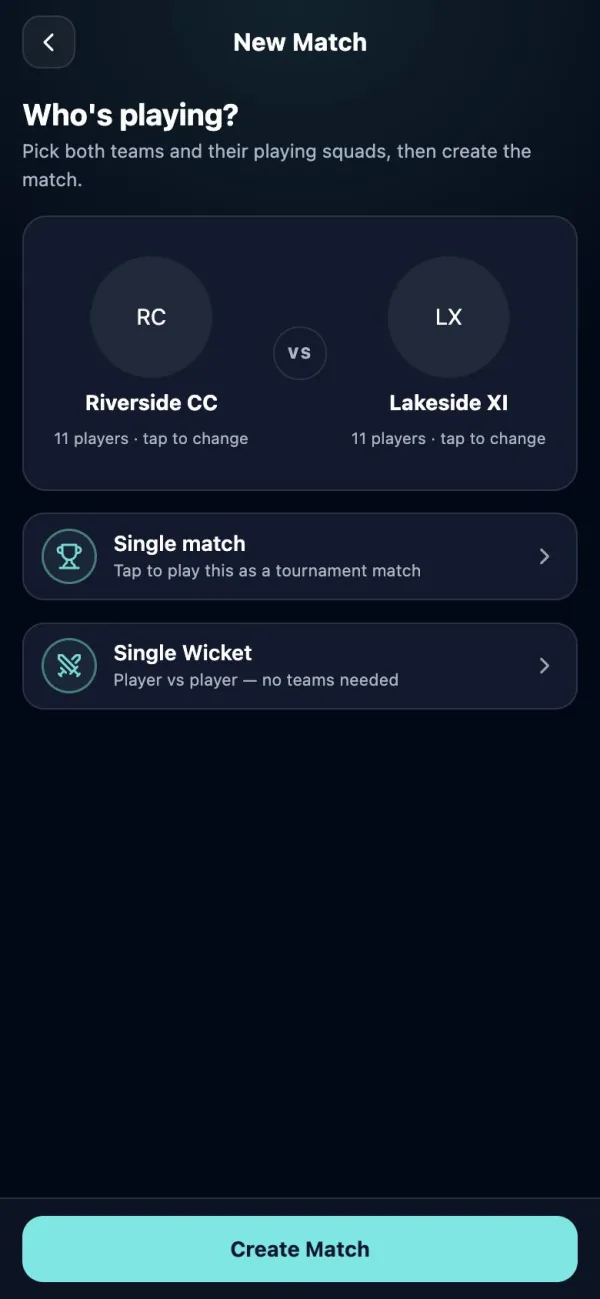
Playing one-on-one? Choose Single Wicket instead. See our single wicket rules.
Step 3: set up the match
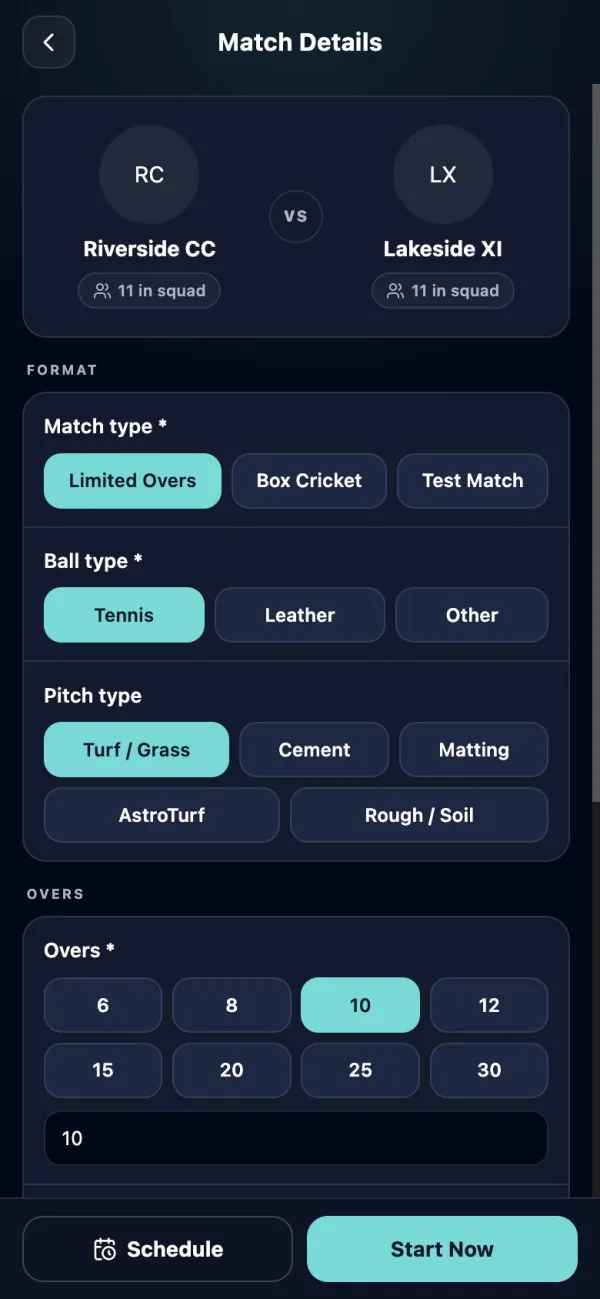
Tap Create Match, then fill in the match details:
- Match type: Limited Overs, Box Cricket or Test Match.
- Ball type: Tennis, Leather or Other.
- Pitch type: Turf / Grass, Cement, Matting, AstroTurf or Rough / Soil.
- Overs: tap 6, 8, 10, 12, 15, 20, 25 or 30, or type your own, and set any power play overs.
- When and where: the date, time and ground.
Step 4: record the toss and your house rules
Tap Start Now. Flip the coin in the app or just record the result: who won the toss and whether they chose to bat or bowl.
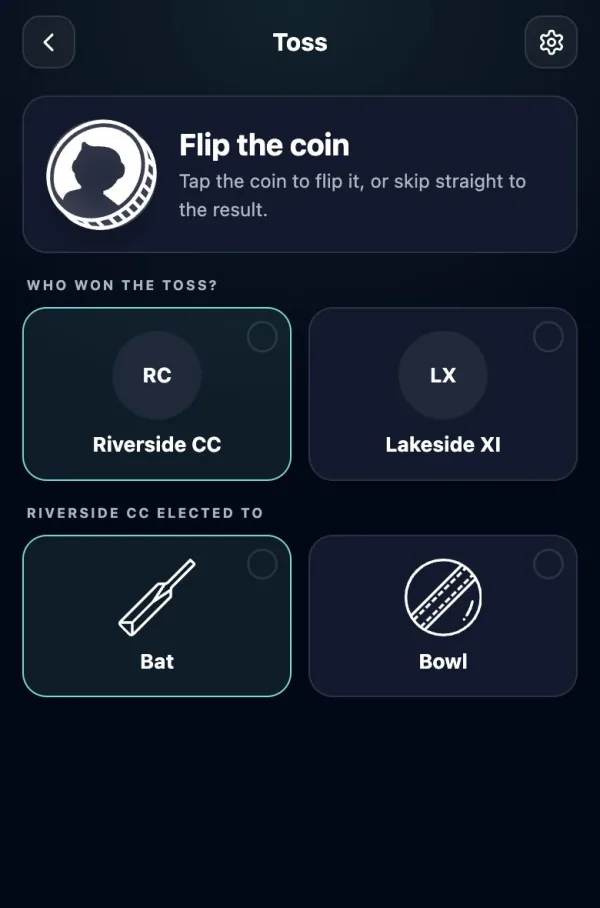
The gear icon opens the match settings. This is where your local rules go: whether wide runs and no-ball runs count, whether the last batter can bat alone, and whether to record a wagon wheel and pitch map for each ball. You can change them during the match too.
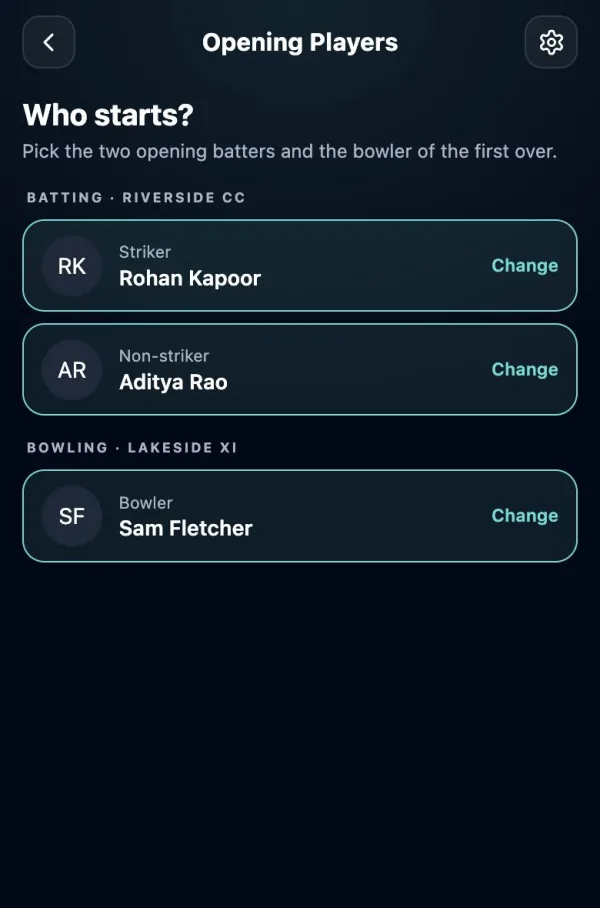
Step 5: choose the openers and the bowler
Pick the striker, the non-striker and the bowler of the first over, then tap Start Scoring.
Step 6: score each ball
The scorer screen has one button for everything that can happen on a ball:
- 0, 1, 2, 3, 4, 6 for runs off the bat, and 5,7 for the rare five or seven.
- WD, NB, BYE, LB for extras, including any runs taken off them.
- OUT for a wicket: choose how out (bowled, caught, LBW, stumped, run out, hit wicket and more) and the fielder, then the new batter.
- UNDO takes back the last ball. Tap it again to go further back.
- The swap button changes the strike if you need to fix it by hand.
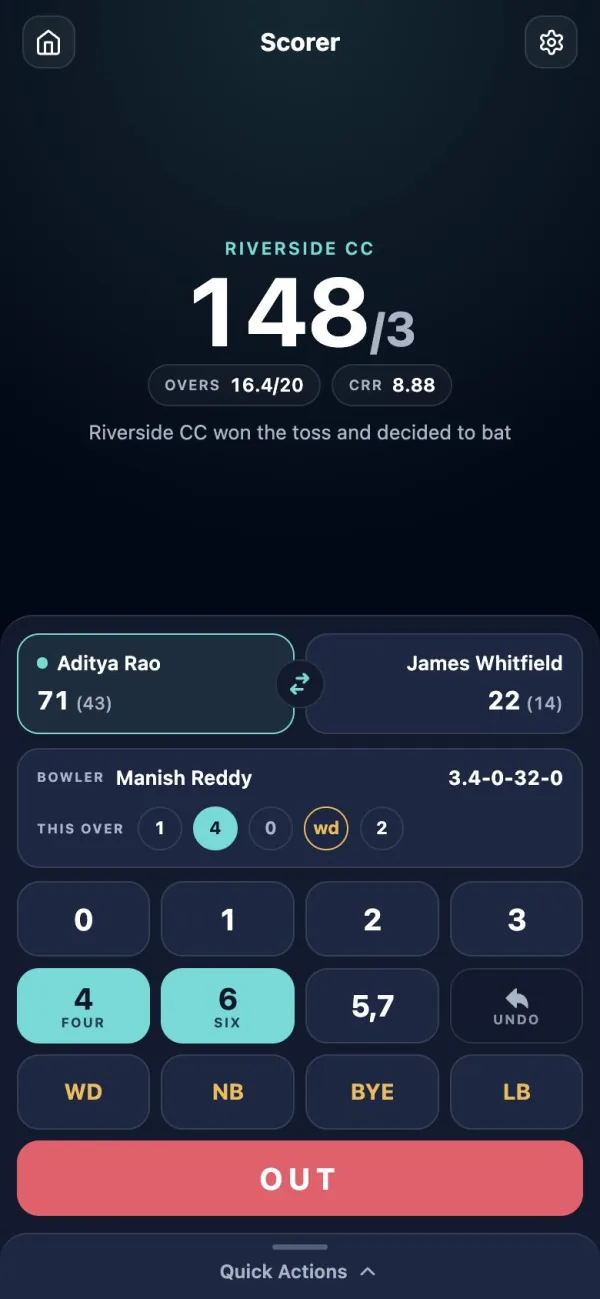
Strike changes after odd runs and at the end of each over, and the next bowler is asked for when an over ends. When the innings is over, pick the openers for the chase and carry on. The target and the runs needed are shown for you.
Step 7: add the wagon wheel (optional)
With shot tracking on, two quick taps after a ball record where it pitched and where the shot went. They build the wagon wheel and pitch map on your scorecard. Skip a ball when you're busy, or switch tracking off in the match menu.
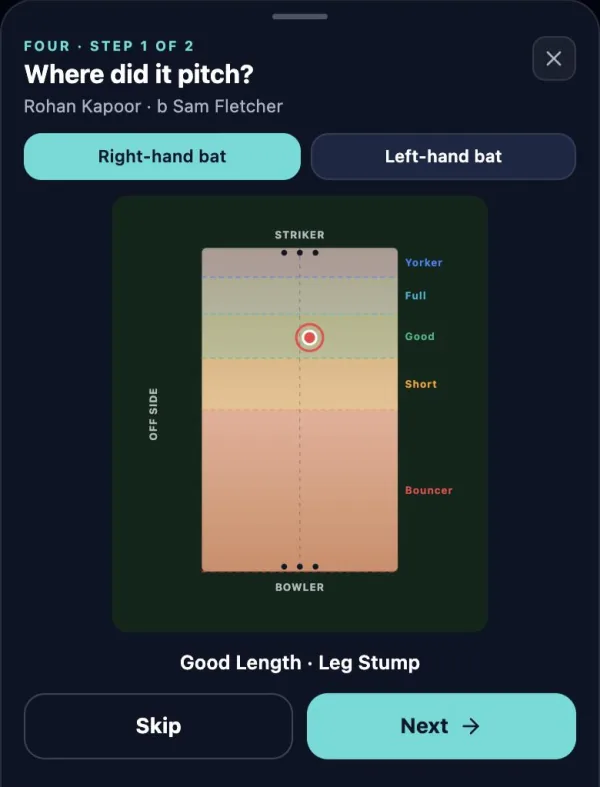
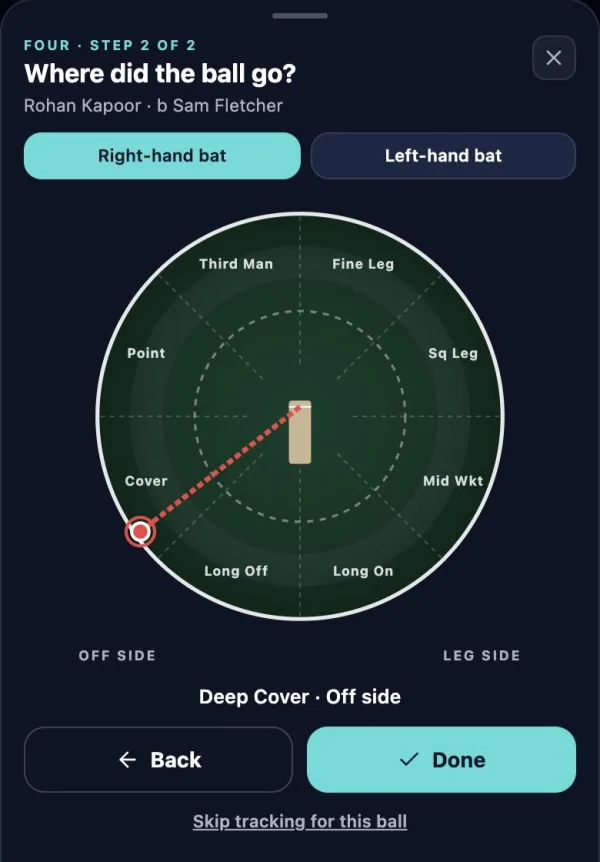
More on reading them in our wagon wheel and pitch map guide.
Step 8: share the live scorecard
Every match has a public scorecard that updates ball by ball. Tap Share on the match page and send the link to your team group. It opens in any browser, with no login and no download.
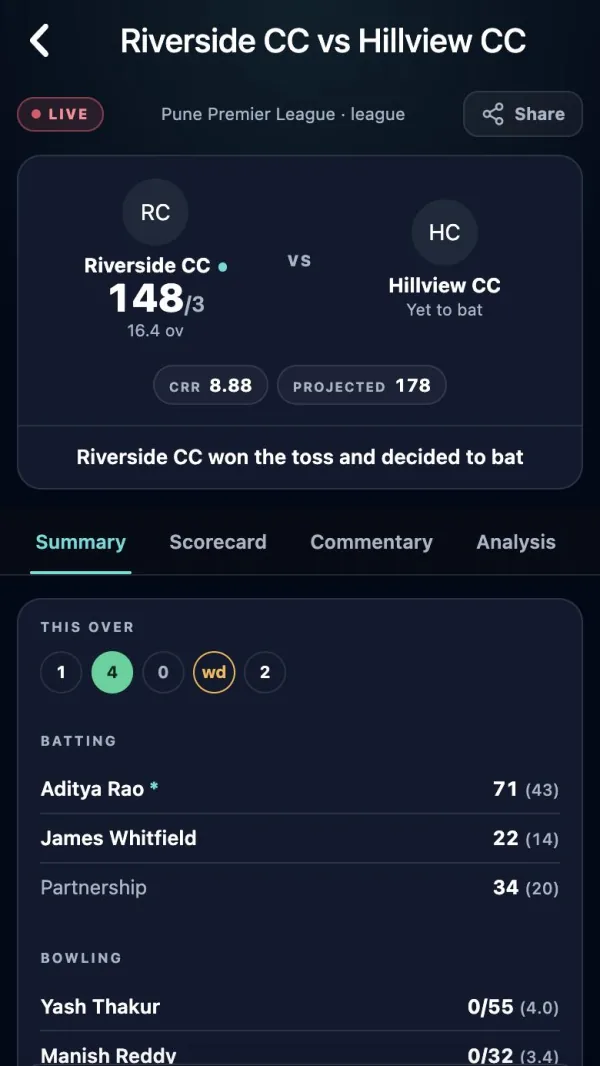
The tabs carry the full batting and bowling card, commentary written for every ball, the analysis and the charts. Streaming the match? Add a live scoreboard to your video: see how to live stream a cricket match on YouTube.
Step 9: after the match
When the last ball is scored, the result goes on the scorecard and every player's career stats update by themselves: runs, averages, strike rates, wickets, economy and best figures.
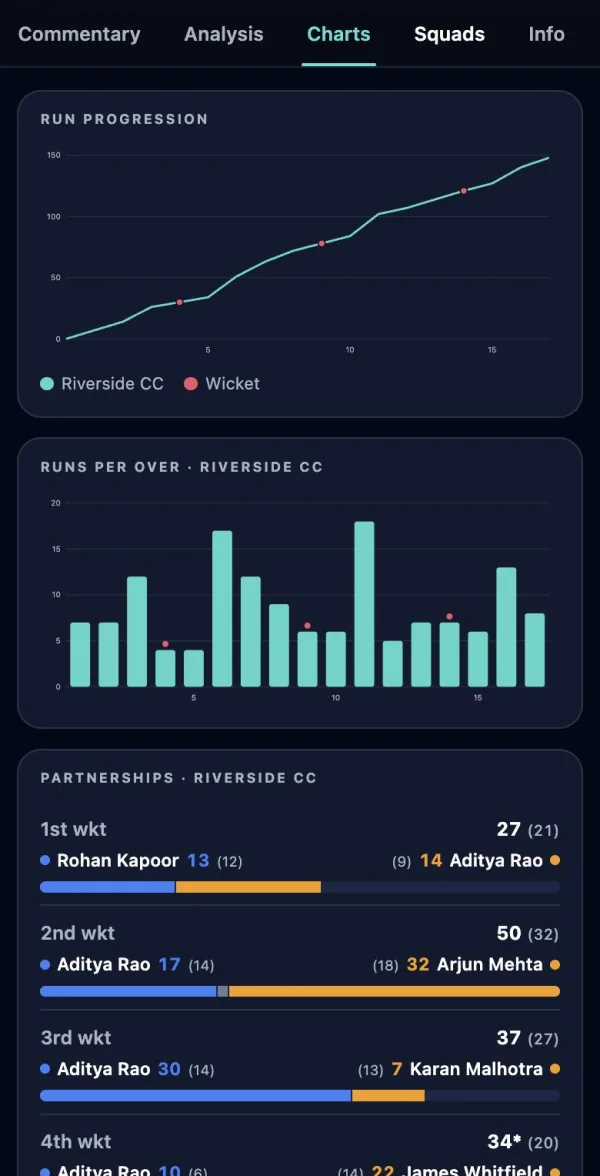
Read what the numbers mean in strike rate, economy and average explained.
Tips for scoring a live match
- Sit side-on to the pitch where you can see the umpire's signals.
- Agree the house rules first: wide runs, no-ball runs and last man stands.
- Use UNDO straight away if you tap the wrong button, before the next ball.
- Patchy signal at the ground? The website needs a connection to save each ball. The Criconic app keeps scoring without one and syncs when you're back online: see offline cricket scoring.
- Running a league? Add the match to your tournament so the points table updates. See the tournament tutorial.
Questions
How can I make a cricket scorecard for free?
Create a match on Criconic, pick the teams, record the toss and tap one button per ball. The batting card, bowling figures, extras and fall of wickets fill in automatically, and the scorecard is free to share.
Do people need the app to see my scorecard?
No. The live scorecard opens in any browser from the link you share, with no login and no download.
Can I score without internet?
The website needs a connection to save each ball. The Criconic app keeps scoring offline and syncs later.
How do I fix a ball I scored wrongly?
Tap UNDO to take back the last ball, as many times as you need, then score it again.
Can I use it for gully or tennis ball cricket?
Yes. Tennis is the default ball type, you can pick a cement or rough pitch, set any number of overs and choose whether wide and no-ball runs count.